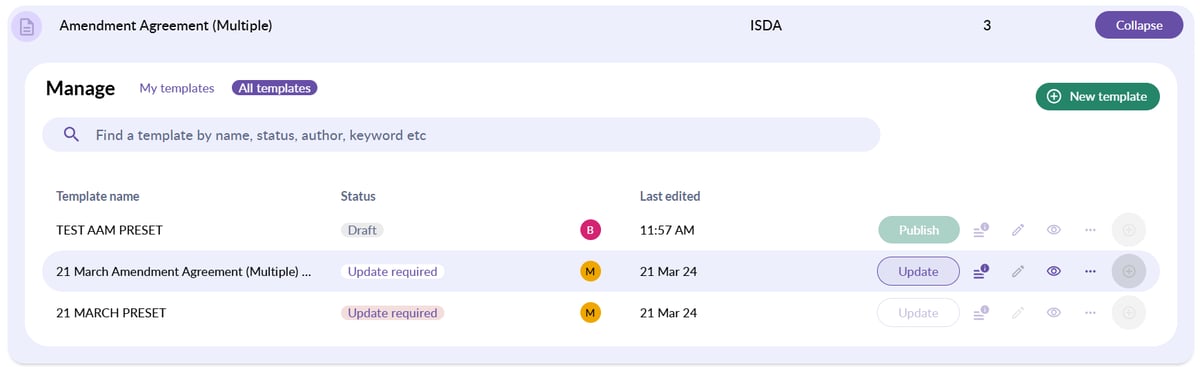
Our breaking changes feature means that negotiations that are already in progress can be updated swiftly so that they contain any contractual updates.
Breaking changes for in-flight negotiations
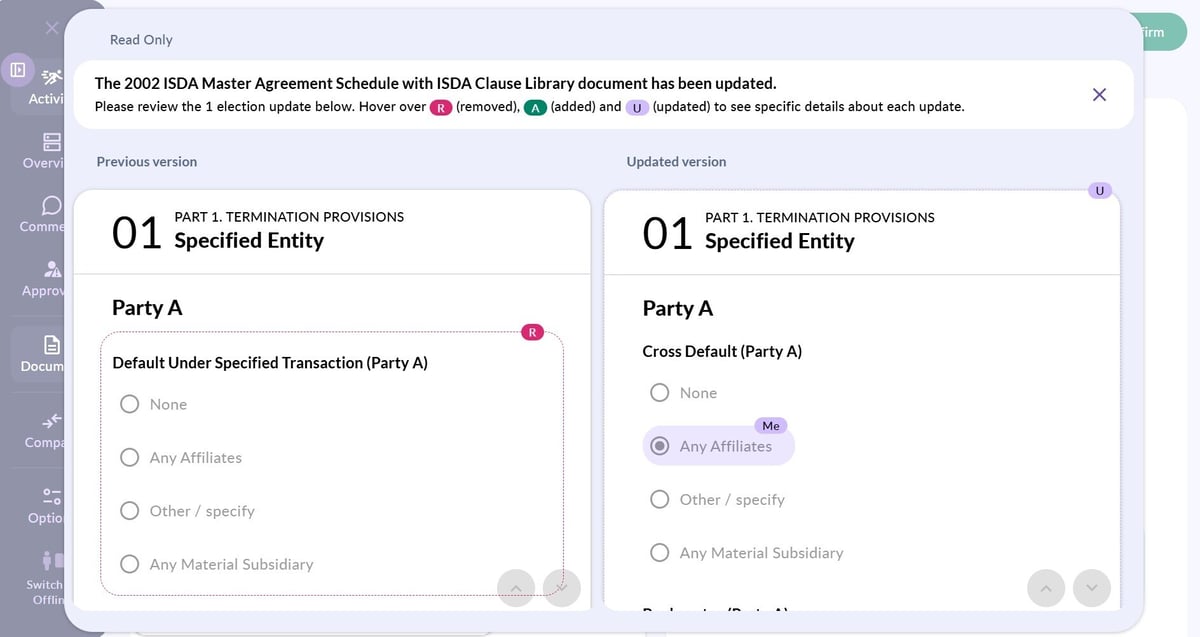
When changes are made to your documents during live negotiations, a pop up will appear the next time you try to change/insert your position. This pop up will show the details of the Breaking change(s) and will typically contain two columns with the following:
The column on the left will display the previous version of the election along with any provisions that had previously been entered.
The column on the right will display the updated version of the election. This will typically be editable, allowing you to save your previous provisions into the new version of the election. As you update each provision, a saving/saved icon will appear in the top right corner of the pop up.
💡 With Umbrella elections, you won't be able to see your answers in the pop-up, instead, you'll need to return to the umbrella modal within the main negotiation page. 💡
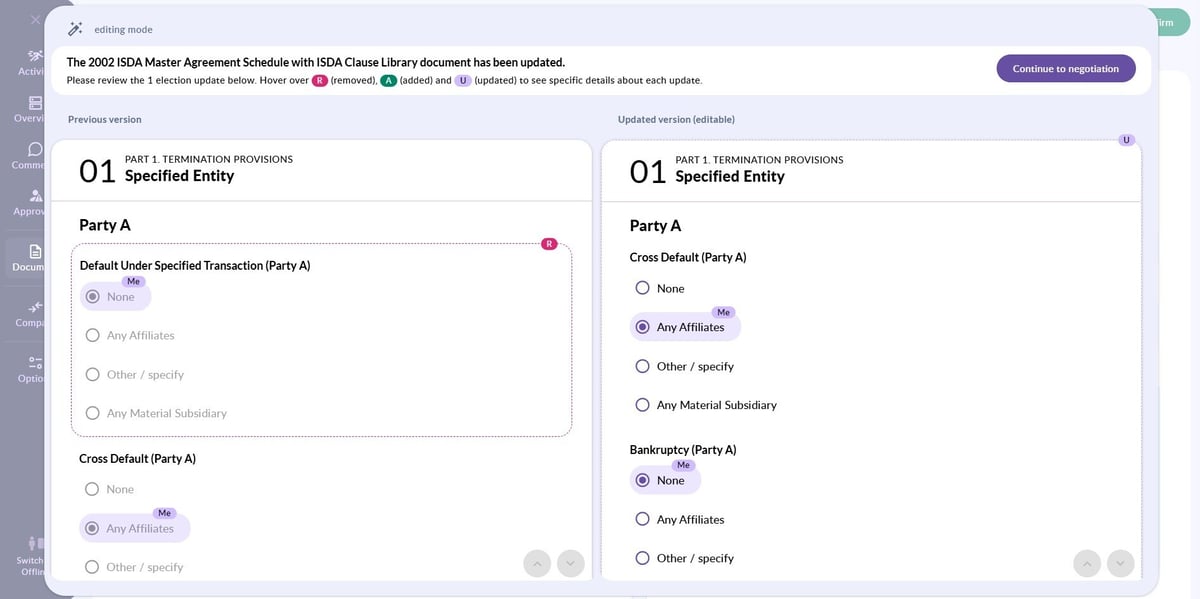
Once you have updated your elections, select Continue to negotiation to be taken back to the main negotiation page. If you wish to continue updating your answers, select Return to updating answers.
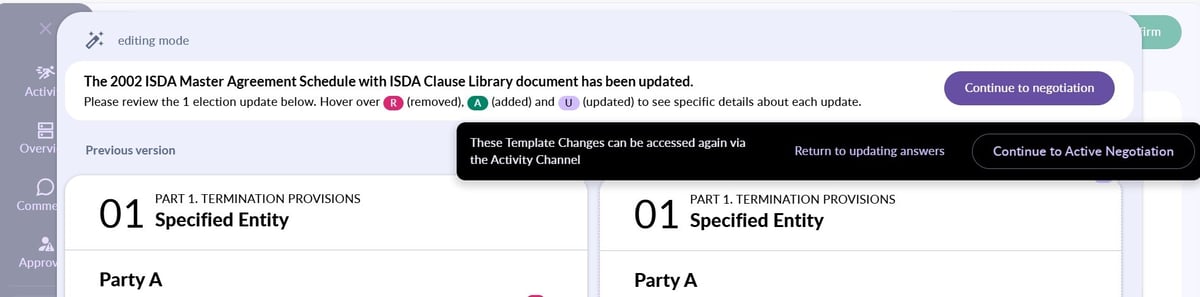
Your updated positions will automatically be saved within the negotiation. The Activity tab within your negotiation will also notify you of the Breaking Changes.
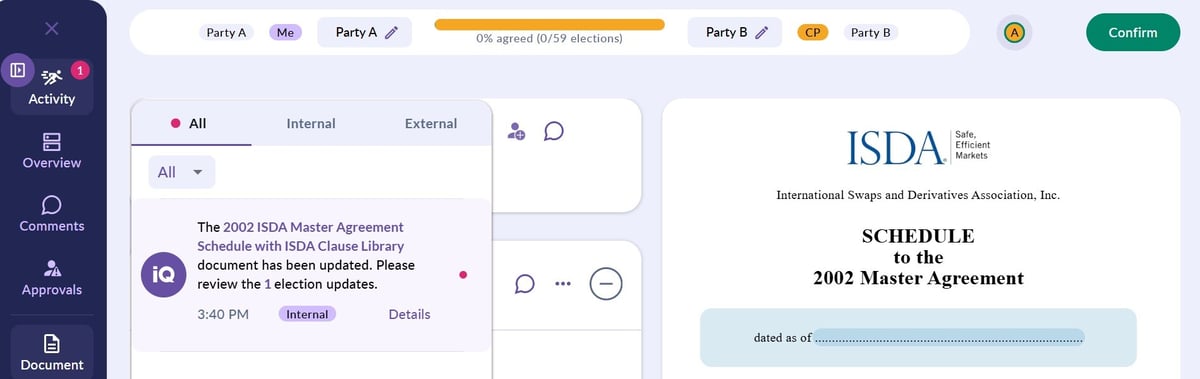
Select Details to view the read only format. If you'd like to return to the main negotiation page, click the X from the top right corner of the pop up.
Breaking Changes in templates
If there is a breaking change in a document that you have made a template from, you'll need to update the template to ensure that the change is reflected. To do this:
- Navigate to the Templates Library and locate the relevant document
- Select Manage to open the templates manager
- Locate the relevant template and then select Update. This will open up the template document. Select Publish from the top right corner to make the updated template available for your use.