What comments can I add to my document?
There are two types of comments on CreateiQ that can be added at either election level or document level
Internal comments are visible to users within your organisation and by your Advisor users.
External comments are visible to your counterparty and enable you to communicate with the counterparty during the negotiation process.
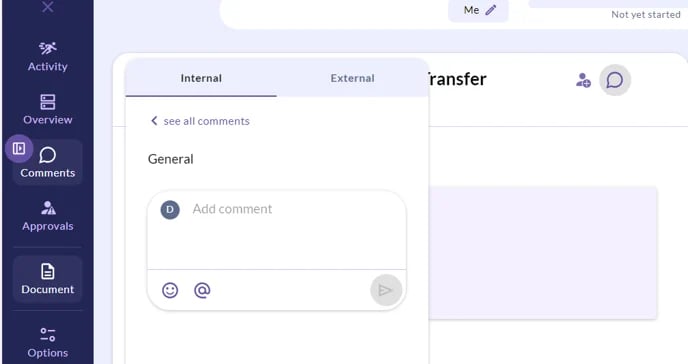
All internal and external comments can be easily viewed by selecting the comments button on the toolbar located on the left-hand side of your negotiation page.
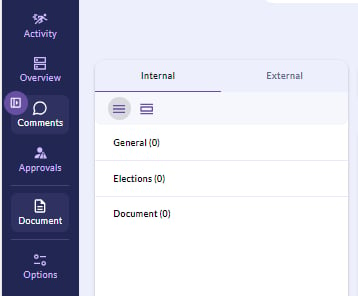
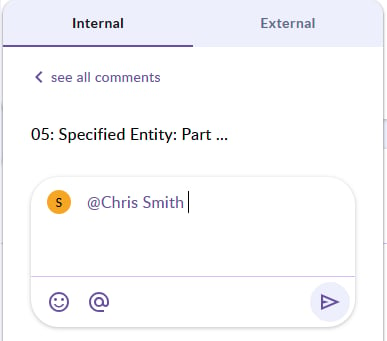
For Internal comments, you can also tag users. This can be done by typing @ followed by the user's name on the platform. This will trigger an email notification to be sent to that person.
How do I add an internal comment?
To add an internal comment, scroll to the relevant election and click on the comment button at the top right of the election and the comment pane will pop up on the left hand-side of your screen. Select the Internal column and write out your comment. Once you have finished typing your comment in the text box, click on the "arrow" icon to save your comment.
How do I add an external comment?
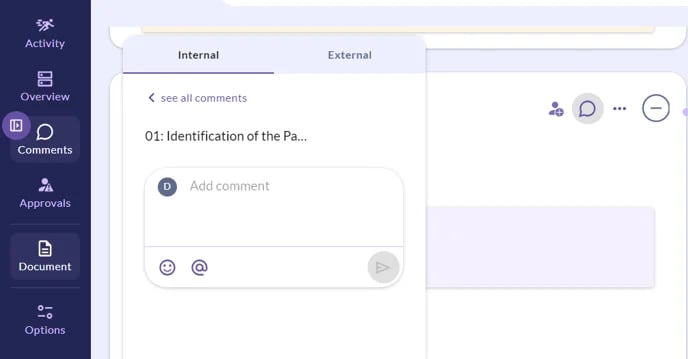
Scroll to the relevant election and click on the comment button at the top right of the election and the comment pane will pop up on the left hand-side of your screen. Select the External column and write out your comment. Once you have finished typing your comment in the text box, click on the "arrow" icon to save your comment. Your counterparty will see the comment once you send the document to them.
Moving the comment pane
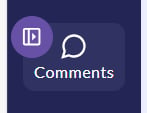
For both internal and external comments you can switch the side of the comment pane depending on whether you would like to have it covering the election page or the draft document using the side switch button beside the comment bubble in the toolbar on the left-hand side of your negotiation page.
Can I add a comment at the document level?
Yes!
If you would like to leave a comment that refers to the document as a whole, for example, for your colleague to review the document before this is sent to your counterparty. You can do this by clicking the comment button at the top of the elections column.
You can tag your colleagues on document level comments.
Comment threads
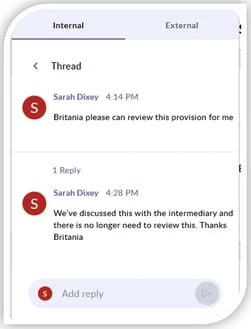
Comment threads allow you to respond directly to specific comments, creating different threads that relate to different topics. This is especially useful if your organisation frequently communicates using comments.
- To add a response to a specific comment, click on the comment icon at the top of that comment.
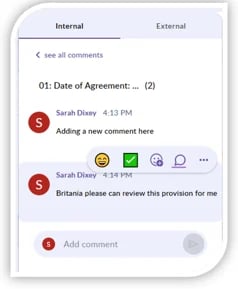
- Once the comment has been added, it will appear attached to the original comment in the same thread.
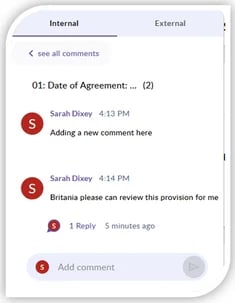
- To expand all comments in one thread, simply click on the ‘replies’ link under the first comment to show the full comment thread.
💡 Please note that comments can be edited or deleted after they
have been posted if the negotiation has not yet been sent to the
counterparty. If you wish to delete your comment, click on the ellipses
(…) next to the comment and click Delete. 💡
Once the negotiation has been sent to the counterparty, the comment is saved, and it cannot be deleted or edited.
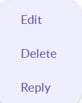
If you wish to edit your comment, click on the ellipses next to the comment and click Edit.