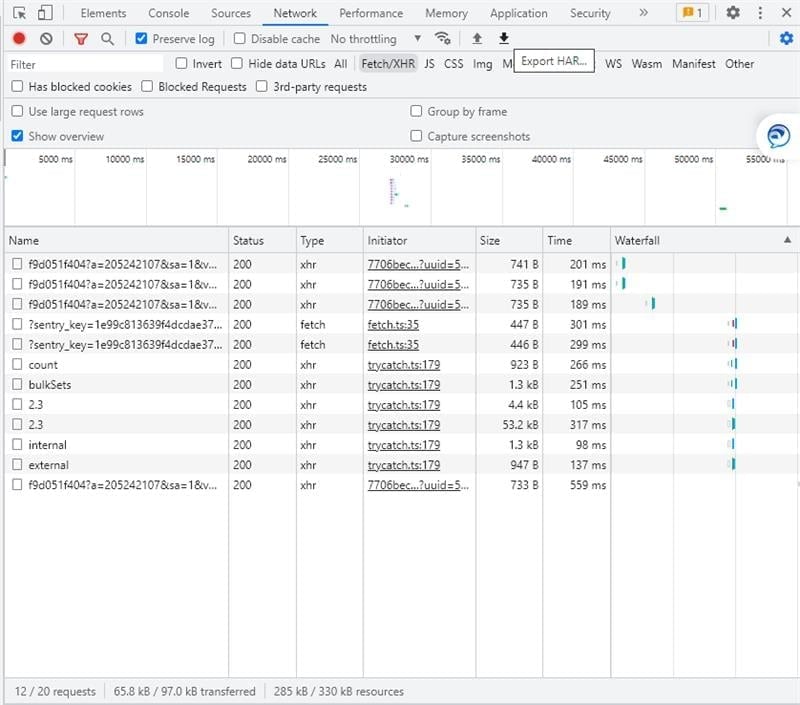
For Microsoft Edge:
- Open Microsoft Edge and log onto CreateiQ.
- Open the relevant negotiation.
- Click on the browser menu (top right hand corner), More tools > Developer tools.
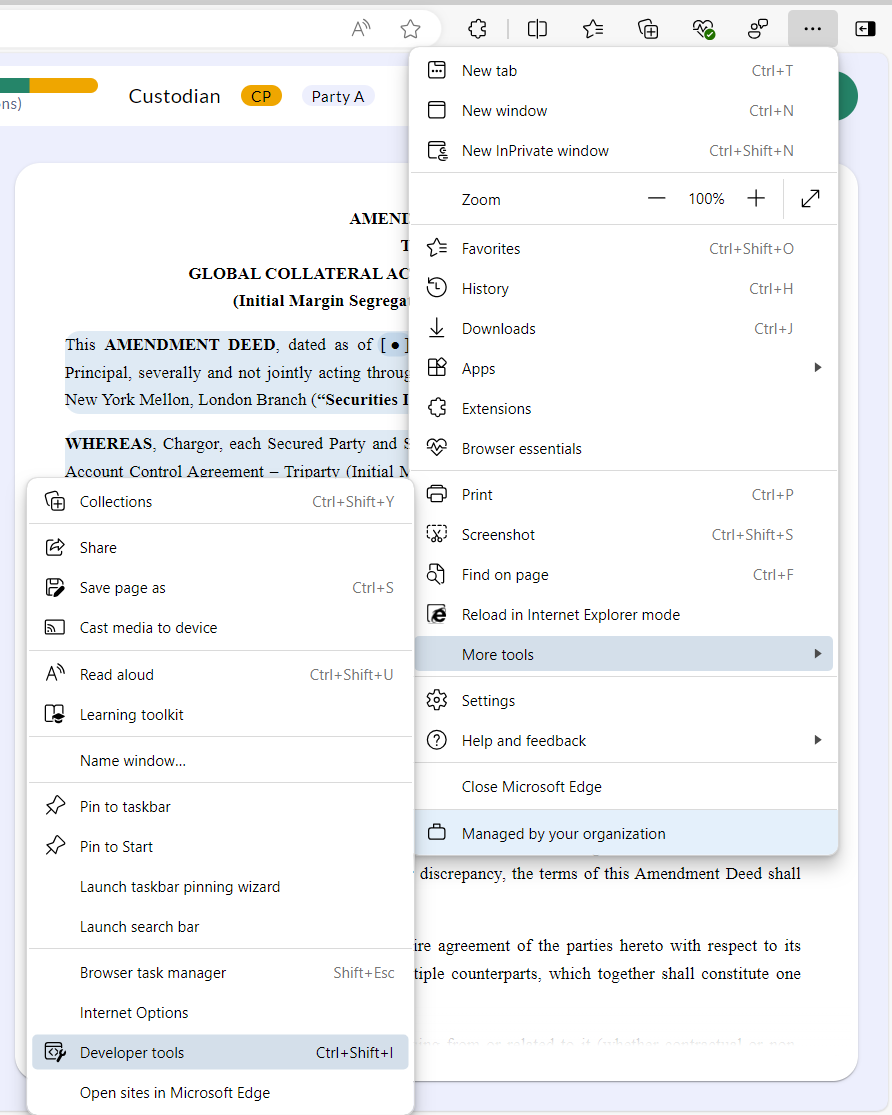
- Select the Network tab and make sure "Preserve Log" is checked.
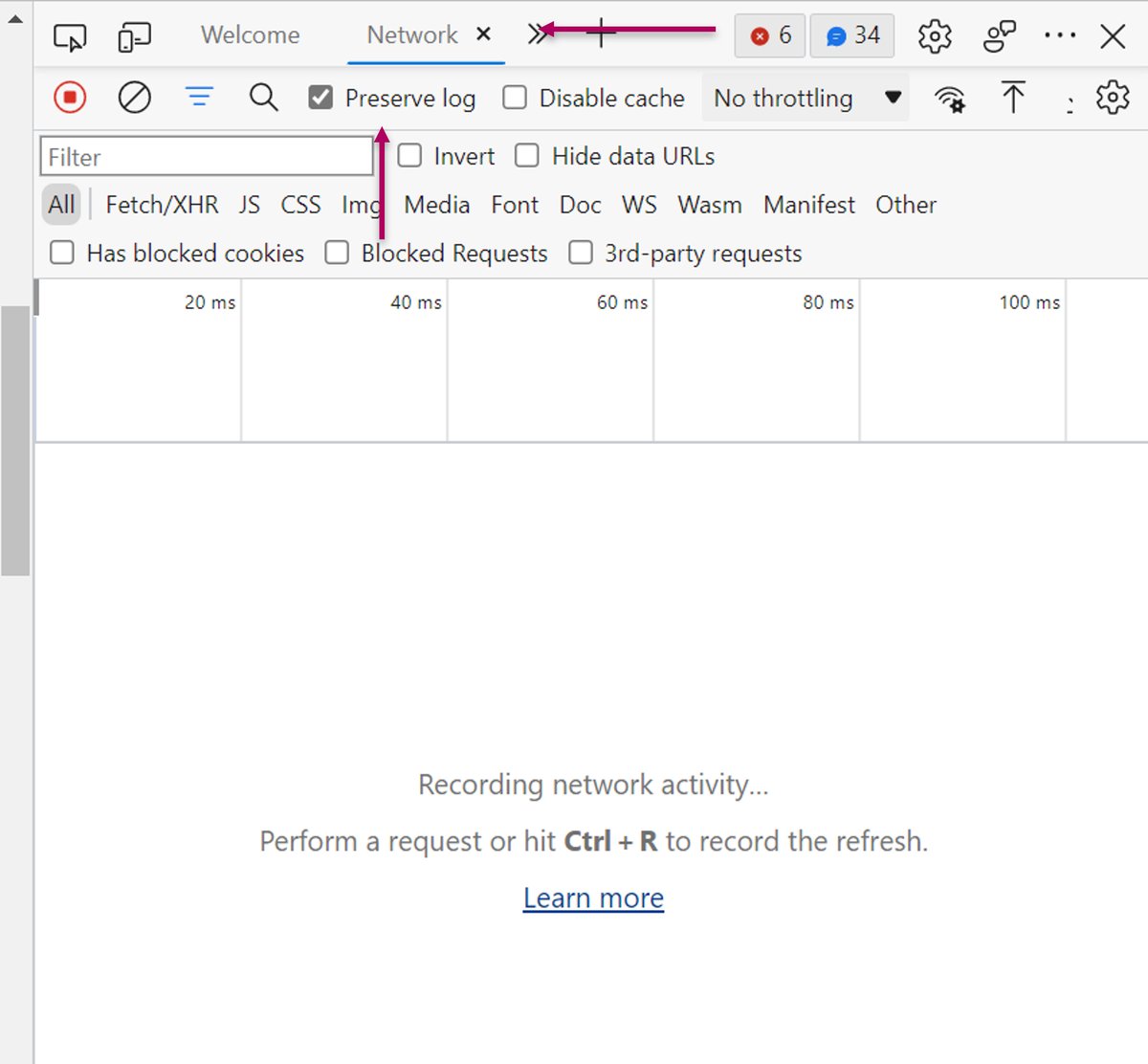
- Select the red record button (or you can click CTRL+ E) to start recording the session. If the red button turns into a filled square - the session is being recorded.
- Try to reproduce the issue you were experiencing before, while the network requests are recorded.
- To stop recording the session, select the filled square button.
- Select the "Export HAR..." button to export the recorded session to a HAR file. The button looks like an arrow pointing downwards to a horizontal line.
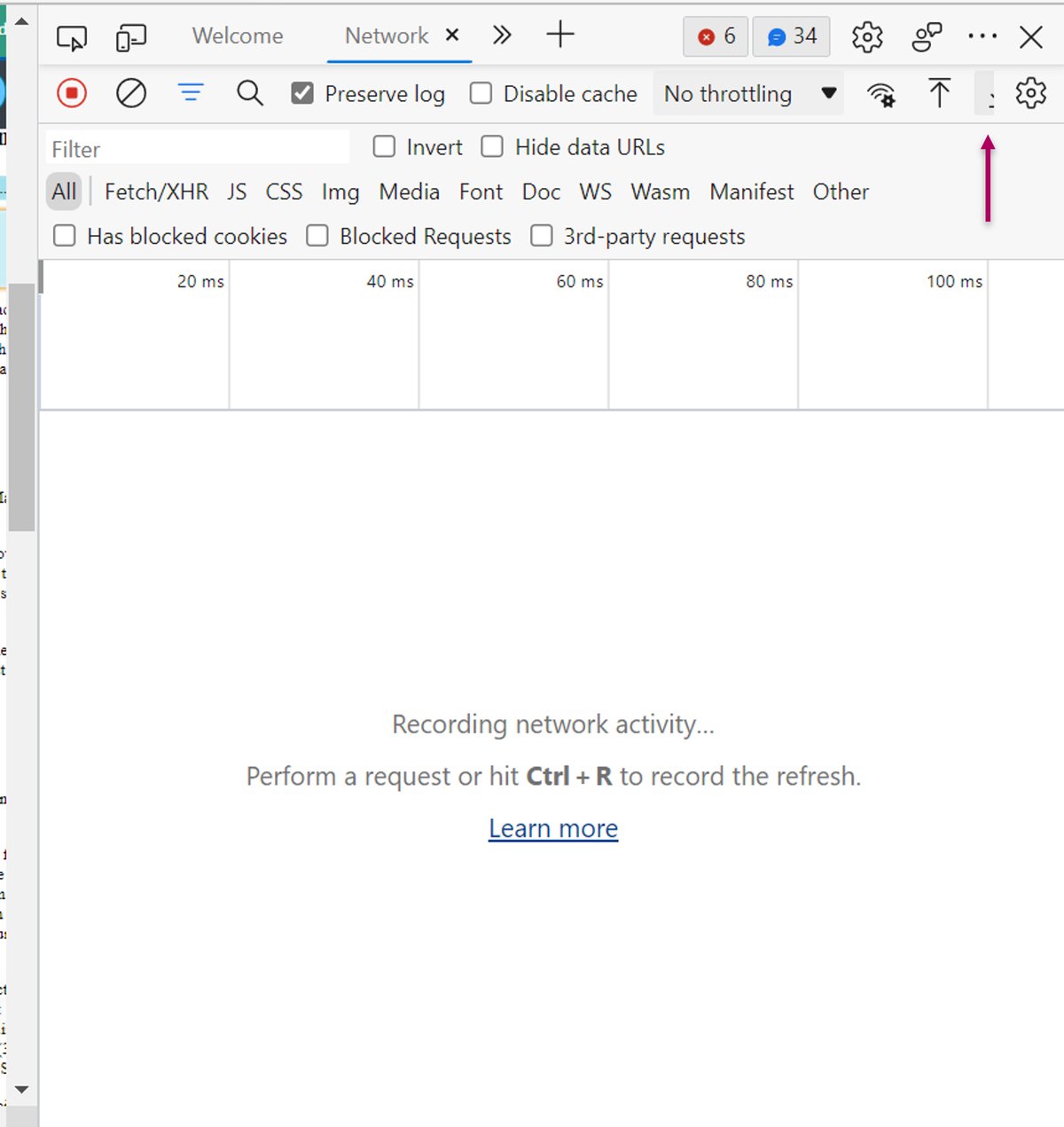
This HAR file can now be passed onto support to solve your technical issue.
For Google Chrome:
- Open Google Chrome and log onto CreateiQ.
- Click F12.
- Select the Network tab on the pop up panel, and click Preserve Log.
- Click the clear button, located next to the record button, in order to clear out any existing logs from the Network tab.
- Click the record button in the upper left corner of the panel. If the record button turns grey, the session is being recorded.
- Try to reproduce the issue you were experiencing before, while the network requests are recorded.
- Click the grey button once done.
- Click Export HAR file. This HAR file can now be passed onto support to solve your technical issue.