
Have you ever wondered how a negotiation played out?
Which of your positions made it to the final document and which ones your counterparty changed, and how long each round took?
Negotiation Insights gives you the full story in one place, so you no longer have to piece it together.
What is Negotiation Insights?
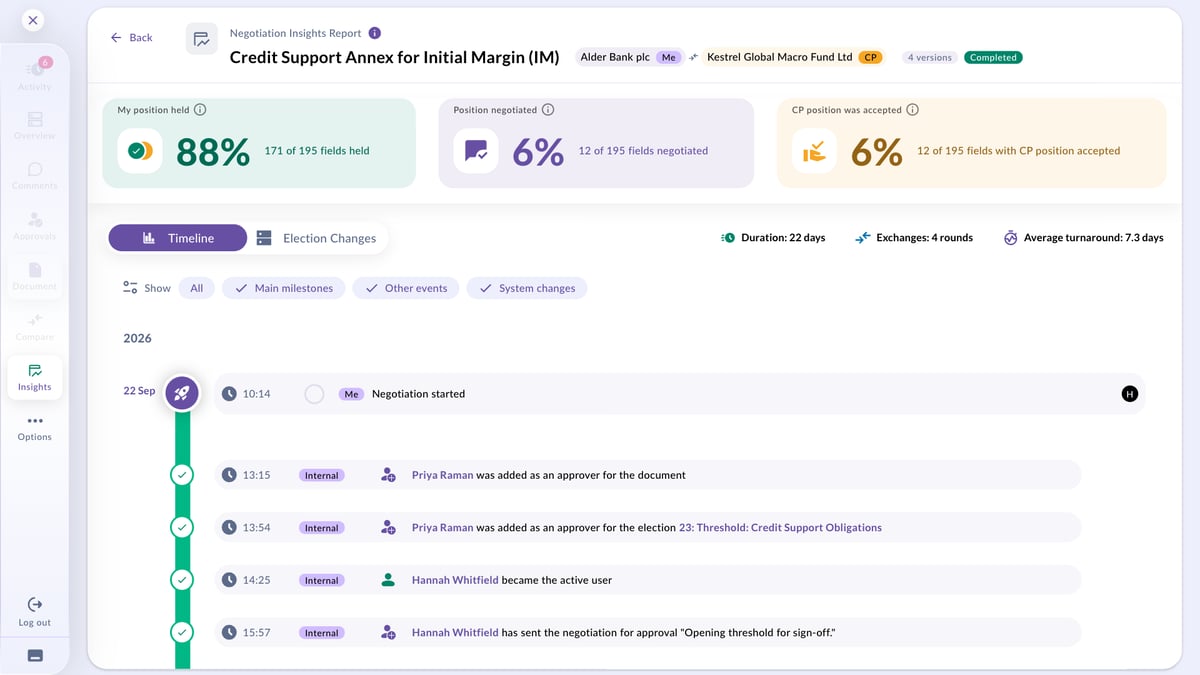
Negotiation Insights is a report for each of your negotiations. It's a snapshot of the negotiation to date, showing:
- Key metrics: how many fields kept your initial position, how many were negotiated, and how many took on your counterparty's position.
- Timeline: every version exchanged, who worked on it, when it was sent and how far the negotiation had progressed at each step.
- Election Changes: every field in every election, version by version, along with how each position was resolved.
It works for both online and offline negotiations, whether they're in progress or completed.
How do I get access?
Negotiation Insights is available to everyone at no extra cost, and there's nothing to set up. You can open the report for any negotiation you can access in your workspace.
The report isn't available to guest users or guest approvers. It also isn't available for Custodian negotiations or cancelled negotiations.
Where to find it?
Open your negotiation and click Insights in the toolbar along the left-hand side of the negotiation page.
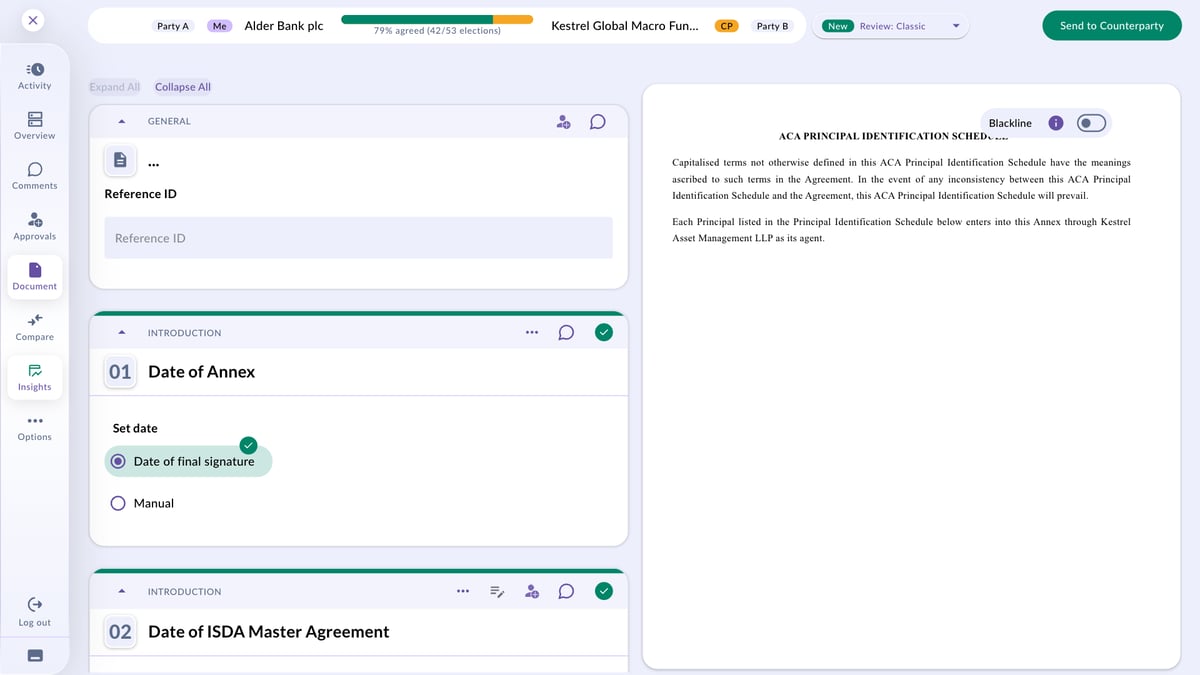
For a completed negotiation, click View elections first, then click Insights.
💡 Click Back to return to your negotiation, or the X in the top-left corner to go back to your Library. 💡
At the top of the report you'll see the document name, both parties (marked 'Me' and 'CP'), how many versions have been exchanged and the negotiation's current status. Click the info icon next to Negotiation Insights Report for a quick guide to the report.
Key metrics

Three cards summarise the outcome of every field in the negotiation:
- My position held: the initial position was maintained.
- Position negotiated: neither side's initial position was adopted.
- CP position was accepted: the initial position was replaced by the counterparty's position.
Each card shows a percentage and the number of fields behind it, for example 171 of 195 fields held. Fields are compared with the first version that was sent.
💡 Position negotiated means the field moved away from both sides' starting points. It doesn't necessarily mean you and your counterparty have agreed on it yet. 💡
Timeline
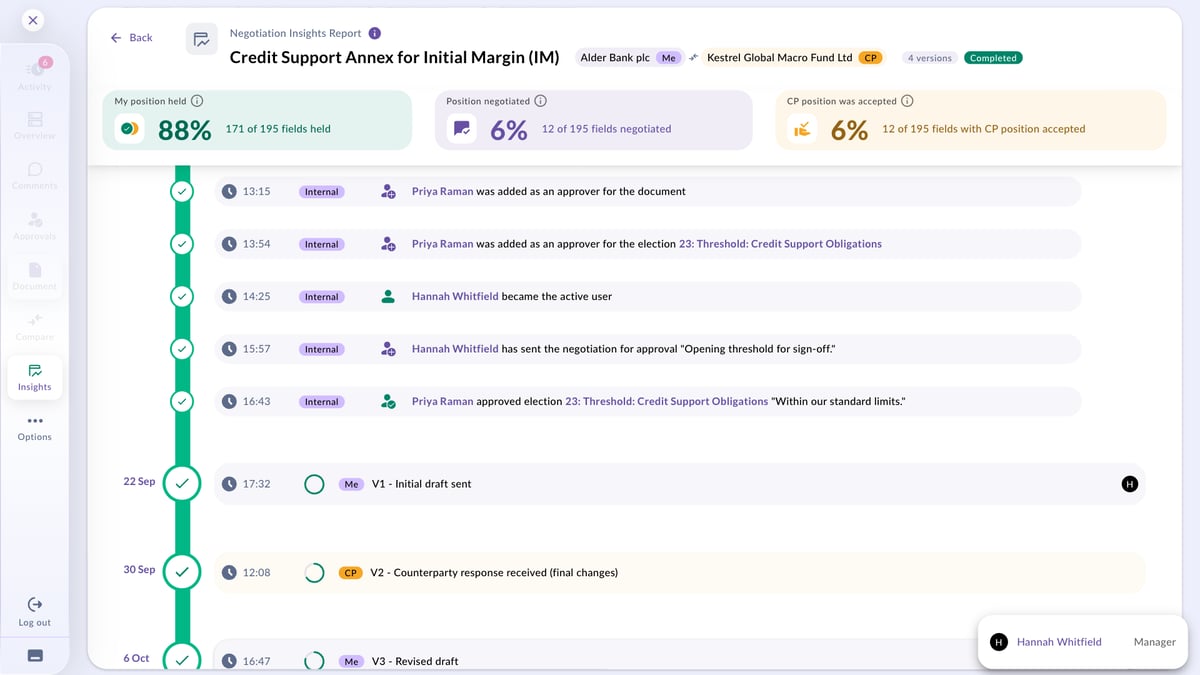
The Timeline tab tells the story of the negotiation from start to finish. At the top you'll see:
- Duration: how many days the negotiation has been running, or how long it took to complete.
- Exchanges: how many versions have been sent between the parties.
- Average turnaround: the average number of days between versions.
Below that, each main milestone is shown in date order, for example V1 - Initial draft sent or V2 - Counterparty response received, marked 'Me' or 'CP'. On each milestone:
- Hover over the progress ring to see how complete the negotiation was at that point.
- Hover over the avatars to see who worked on that version, and their role.
Under each milestone you'll find the other activity that happened in between, such as approvals, changes of active user and reserved elections. Each one is marked Internal or External.
Use the Show filters to switch between All, Main milestones, Other events and System changes.
Election Changes
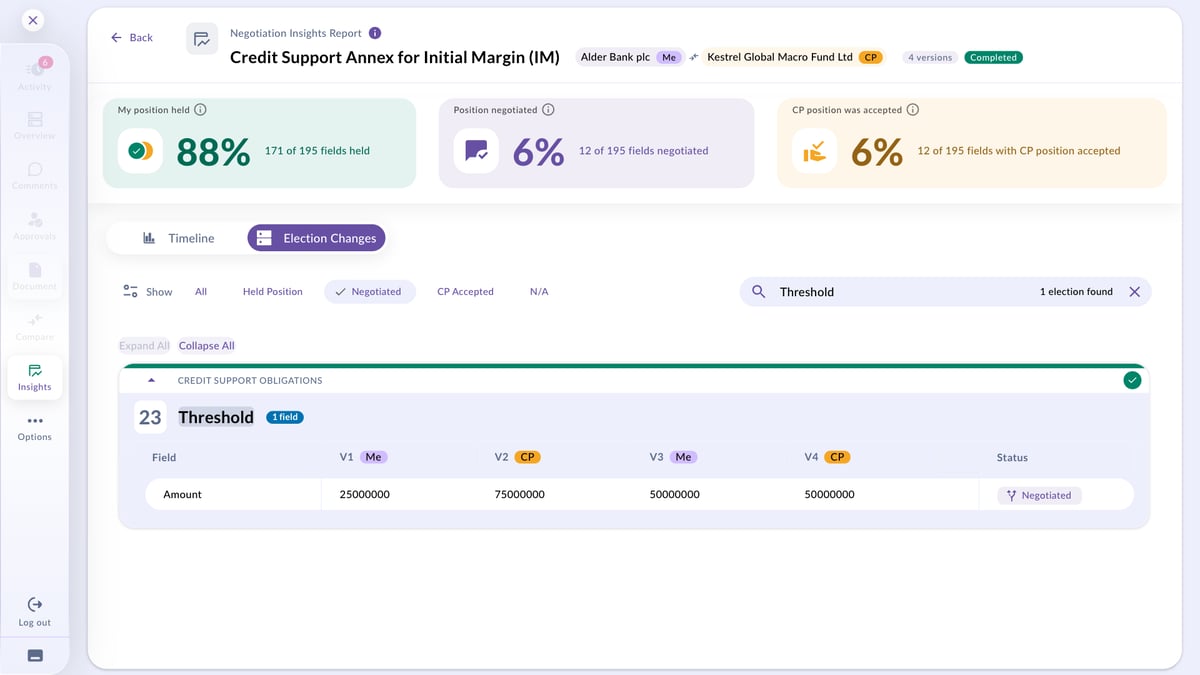
The Election Changes tab lists every election in the document. Each election has a table showing its fields across every version, from Template (if you started from one) through V1, V2 and so on. Each version is marked 'Me' or 'CP' to show who sent it.
The Status column shows how each field was resolved: Held Position, Negotiated or CP Accepted.
To find what you're looking for:
- Use the Show filters to see only fields with a particular status, for example only the fields that were Negotiated.
- Use Search elections to jump to a specific election by name.
- Use Expand All and Collapse All to scan the report quickly.
Using Insights during a negotiation
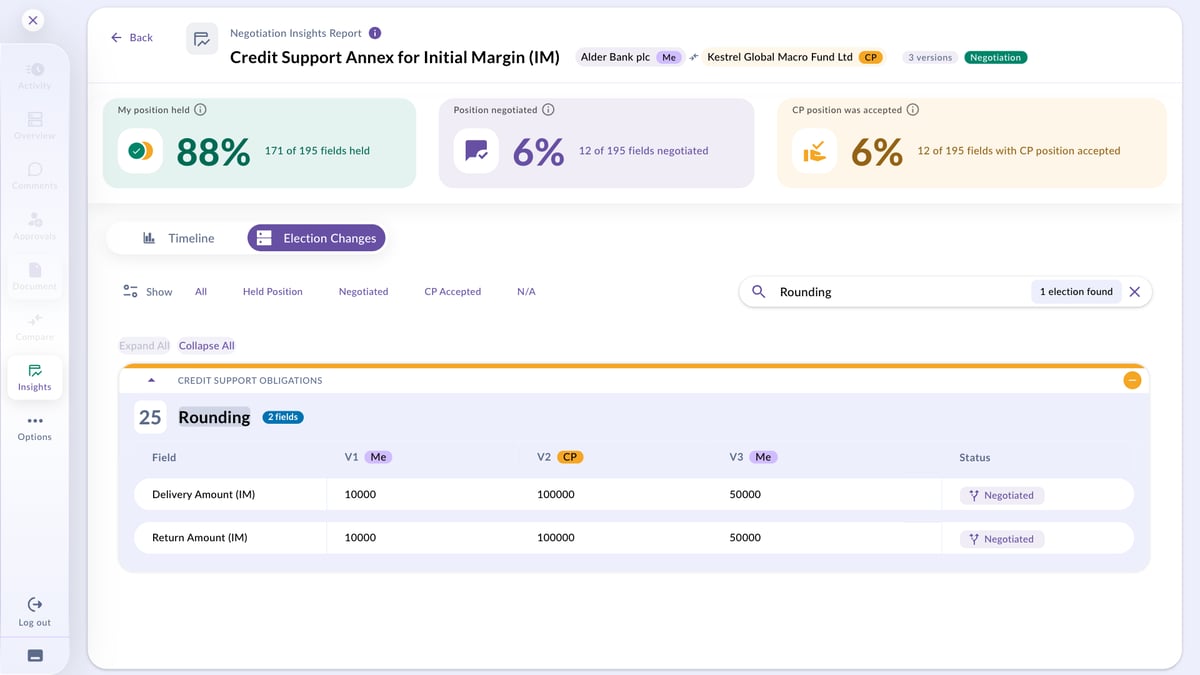
You don't have to wait until the end. While it's your turn, any changes you've made but not yet sent appear in Election Changes as the next version, so you can check where things stand before you send it to your counterparty.
💡 Your counterparty sees their own version of the report, from their side of the negotiation. A field that shows as CP Accepted for you may show as Negotiated for them. 💡
If you have any questions about Negotiation Insights, please contact us at support@createiq.tech.