Overview panel: navigating each election in your document
Clicking into the Overview icon in the toolbar along the left-hand side of the negotiation page, will give you a quick summary of the document provisions that your counterparty has agreed and not-agreed with.
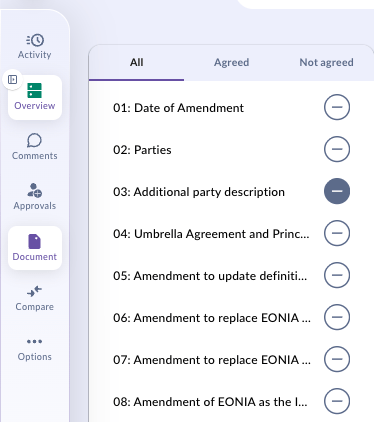
To easily view all provisions in your negotiation which are agreed click on the Agreed tab within the Overview panel. Likewise, to view all provisions which are not agreed simply click on the Not Agreed tab within the Overview panel.
You can also move the overview panel to the right-hand side of your page by clicking the side-switcher icon beside the overview icon in the toolbar.
💡 Wider-screen tip: If you want more space to focus on the document, you can flip the sidebar from a vertical panel to a horizontal layout. This gives you a wider, less cramped document view, which is especially useful on large monitors. Flip it back to vertical whenever you want quicker scanning between elections.
CreateiQ makes your life easier by colour-coding each document provision depending on whether your and your counterparty agree or disagree.
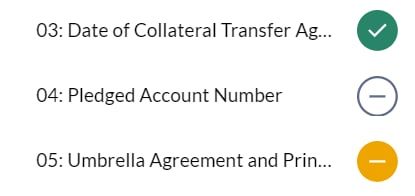
A grey icon indicates that you have filled in an election, but your counterparty has not.
A yellow icon indicates that you and your counterparty have both filled in the election, but do not agree.
A blank icon indicates that you, or both you and your counterparty, have not filled in the election.
A green icon indicates that both you and your counterparty have filled in and agree on an election.
Labelled elections
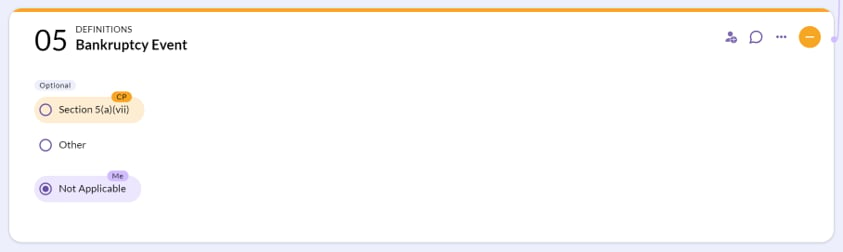
Which drafting choice is yours and which is your counterparties? Look out for the 'Me' label to see your selection, and the 'CP' label to see your counterparty's selection.
Time to send back to your counterparty, again!
Once you have reviewed all of your counterparty's suggestive provisions or comments, and you have added or amended any as you wish, you can then continue to send the document between yourself and the counterparty until it is complete.
Document progress
In other words: how close are we to getting this agreed?
- You can view the status of the document in your Dashboard or in your Negotiations tab.
- The document will appear with a % completion symbol to indicate the percentage of the document in agreed form.
- Alternatively, whilst you're negotiating, you can view the status of the negotiation in the progress bar at the top of your screen.

- You will also be notified by email at every drafting milestone.
Want to share your negotiation?
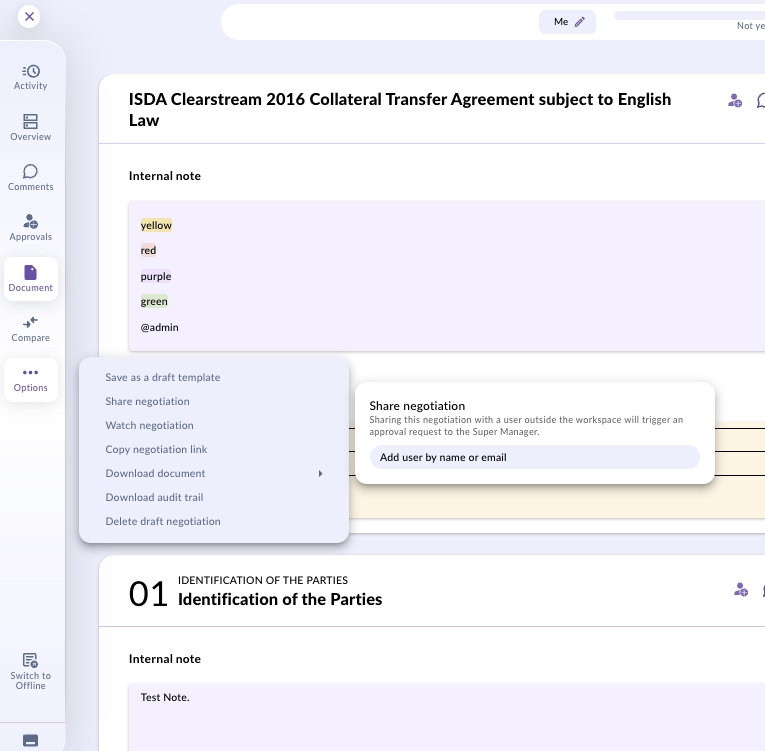
You're able to generate a link for your negotiation making it easier for your collaborators to find. To do this select 'options' from the sidebar menu with your negotiation open and select the ‘Copy negotiation link’. A URL link will automatically be generated and copied. You also have the 'share negotiation' option. Here you can add a user by their account name or email address.
Swapping Parties
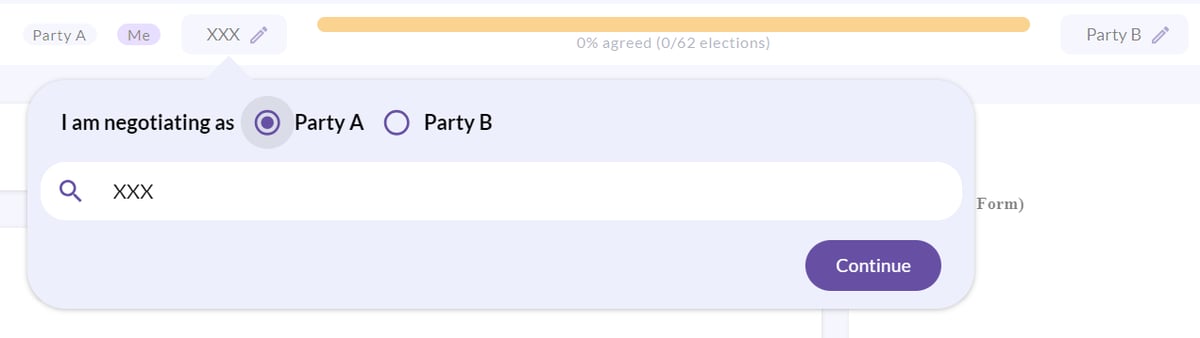
Party A and Party B can be switched if the document requires it.
This can be done via the parties selector, when Party A defines themselves as A or B.