
Before sending a document, you'll need to enter the name of your counterparty. As soon as you open a draft negotiation, you will be prompted to enter the party's names. You can do this now or select the option to Skip & choose later.
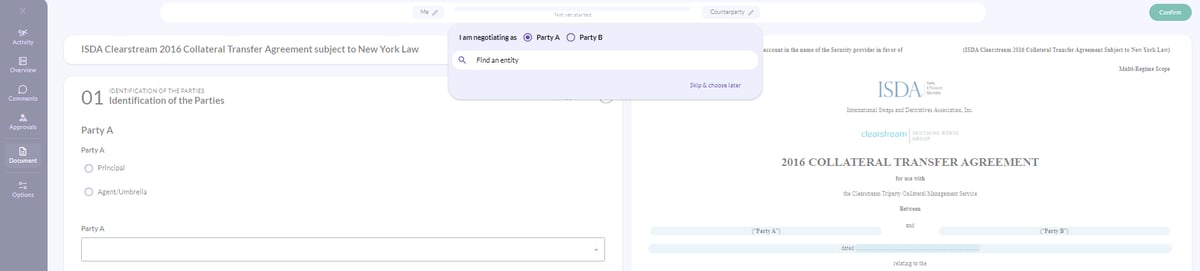

If you choose to skip, you can revisit this later by clicking on the "Me" and "Counterparty" labels at the top.
You've populated your document, so how do you send it to your counterparty?
How to send a document
Once you have populated your draft document simply click ''Confirm'' from the top right of your screen. If you haven't already done so, add your counterparty name as you won't be able to proceed without it.
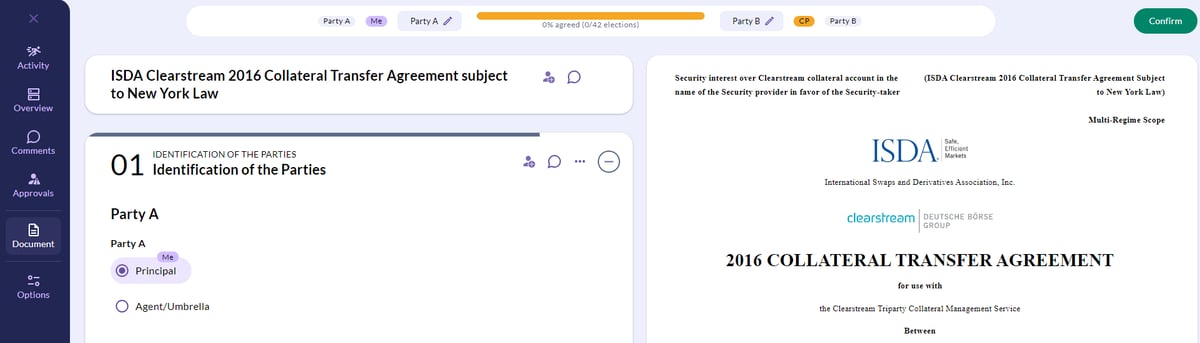
Enter your counterparty's email address, this will be where your document is routed to, then press the Return key.
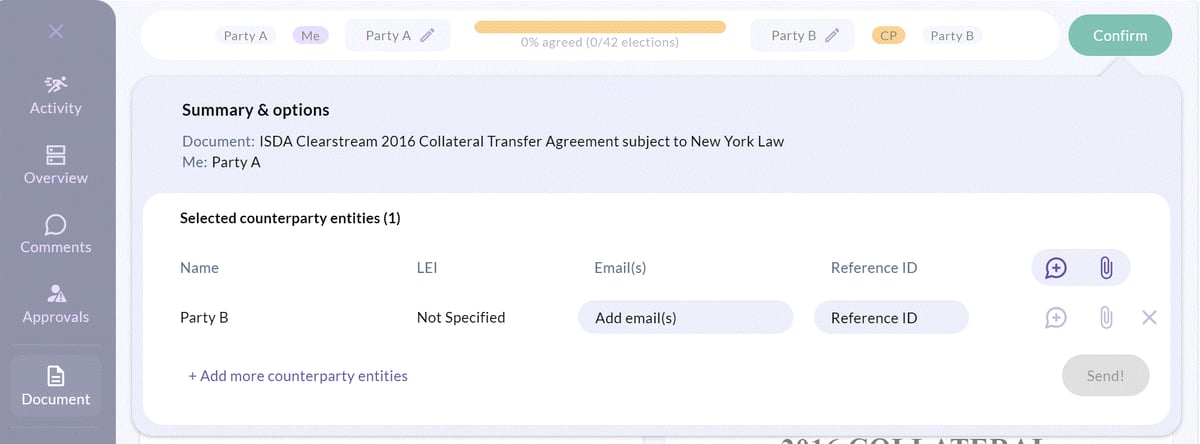
💡 You can add more than one email by separating them by a comma.
You're also able to attach documents to your negotiation by using the paper clip icon. Your documents that will be sent with the initial email that your counterparty receives.
Once you are ready to send your invitation, click on Send! and Send
Sent! What does your counterparty receive?
➡️ Your counterparty will receive an email notification where they will be invited to view the document and populate their provisions.
➡️ Your counterparty does not need a CreateiQ account to negotiate, they can access, negotiate and execute the document using our guest access function.
➡️ You can also create an offline version of a document.