
Sharing negotiations internally
To share a negotiation with a colleague:
- Open the negotiation you'd like to share
- From the side bar on the left, select Options and then Share negotiation
- This will open a pop up prompting you to enter the relevant colleague's name or email address. If your colleague already has access to the workspace that the negotiation sits in, their name will be listed in the drop down menu. If they do not, you'll need to enter their email address.
- Once the relevant name/email address has been entered, select Share. If your colleague already has access to the workspace, they'll be added automatically. If they aren't, the super managers on the account will receive an email request to grant them access.
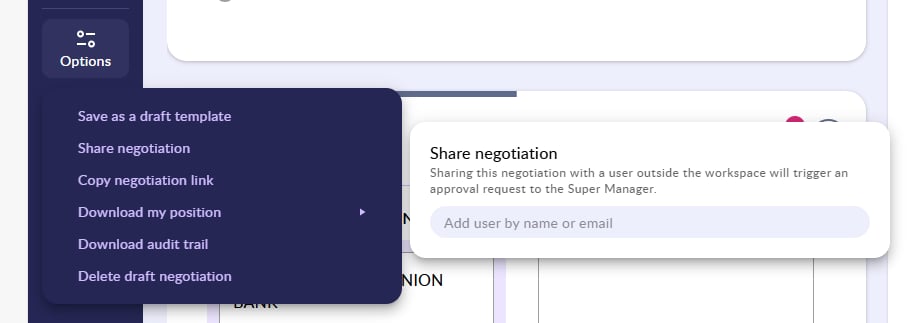
You're also able to share a negotiation with your counterparty by entering their email address.
💡 Sharing a negotiation will grant access to the workspace it sits in and will therefore also grant access to all existing negotiations in the workspace. 💡
Receiving a negotiation that has been shared by your counterparty
If your counterparty has shared a negotiation with you, you'll be notified by email. If you already have access to the workspace that the negotiation has been assigned to, you'll automatically be able to access the negotiation.
If you don't have access to the workspace, a super manager on the account will need to respond to the email approval request that they will receive. Until this approval is actioned your negotiation will have the Access pending status.
Once your request has been approved, you'll receive an email notifying you of this and you'll be able to proceed with your negotiation.
💡 The counterparty who shared the negotiation won't be notified of any internal approvals or rejections, ensuring that your workspace management remains confidential. 💡
Inviting a colleague to a workspace
When inviting a colleague to a workspace:
- Open the workspace you'd like to invite your colleague to and hover over the workspace name before selecting Share.
- Enter your colleagues name or email address and then click Share.
- If you're a super manager adding your colleague to the workspace, they will automatically gain access. If you're not a super manager, all super managers on the account will be notified of the request to add a new person to the workspace. They'll then be able to approve or reject the request.