
Users
You can assign different user roles to team members based on what you want them to access and how they plan to use the platform. See our section below on which user roles are available.
How do I add, change or delete a user?
Super Managers and Admin users can add, change or delete users. More information regarding user roles can be found below.
To add a new user to your account, in the Settings menu (click on the cog in the bottom left of the screen) click on Workspaces and then select +Add new and New User. Add the name and email address of the colleague you wish to add and then select the user permission and workspace you'd like to assign them to.
To change an existing user permission, in the Settings menu click on Workspaces and in the dropdown menu select Users. Navigate to the profile for the chosen user (you can use the search bar at the top of the page) and click on the name to open the profile. From the profile panel, on the righthand side of the screen, select the new user permission from the dropdown menu and change workspaces if needed. Finally - remember to click Save!
To delete an existing user, in the Settings menu click on Workspaces and in the dropdown menu select Users. Navigate to the profile for the chosen user (you can use the search bar at the top of the page) and click on the name to open the profile. From the panel on the righthand side of the screen select Delete user.
💡 Top tip: If you are assigning a user role that isn't Admin or Super Manager, be sure to tick the Workspaces that you would like them to have access to. 💡
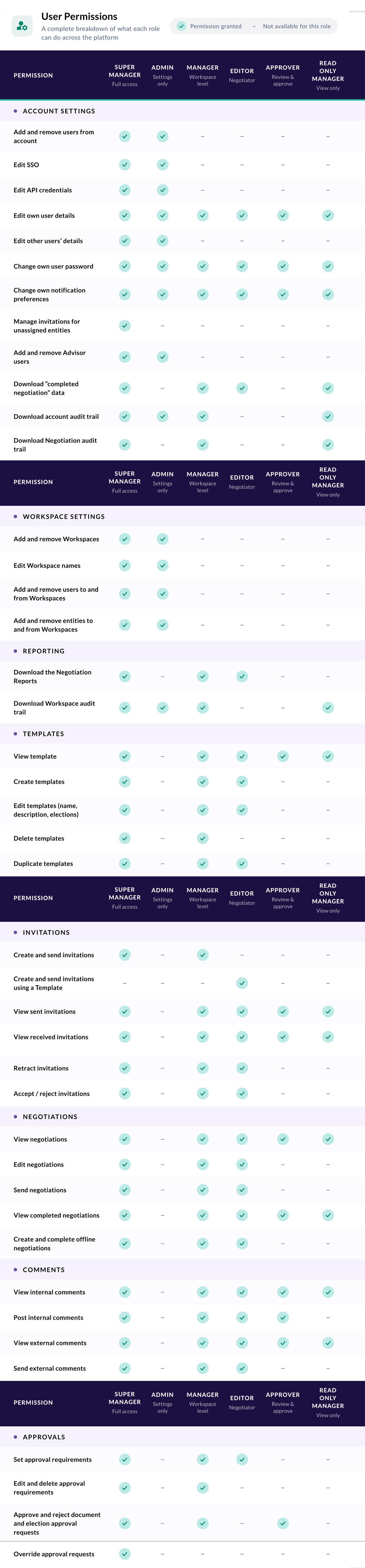
User roles - the cheat sheet
Super Managers Can draft and negotiate documents. SM's can add users, workspaces and entities and also have access to technical settings like SSO and API set up. Can manage advisors for the whole workspace. This is the highest user permission available.
Admin Can add users, workspaces and entities. Admin users also have access to technical settings like SSO and API set up. Admin users can't see negotiations.
Managers Can draft and negotiate documents held in the workspaces that are assigned to them, and can access technical settings for those workspaces, including advisor management. Main difference between Managers and Super Managers is in the former's access being limited to select workspaces only, whereas Super Managers get access to all by default.
Approvers As the name suggests, they can approve or reject certain provisions. Approvers can't draft or negotiate documents, but can access negotiations to view them and leave comments.
Editors Front line negotiators of the documents. Their access is set at individual workspace level. Editors cannot add approvers to individual negotiations and cannot access audit reporting or technical settings. They can run negotiations reports for the workspaces that they have access to.
Read only managers can read everything but cannot create or edit documents. This user is typically used for API connectivity.
Here for the detail? Check out all the user roles below!
If you have any questions about user roles, please contact us at support@createiq.tech.