
Setting approvals to document provisions (at election level)
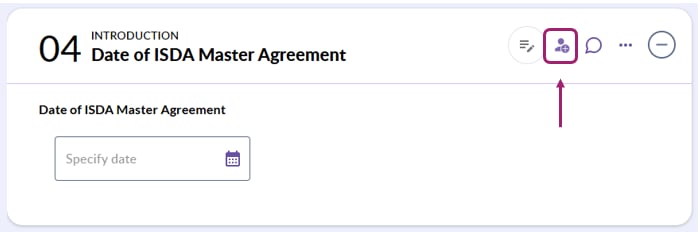
To set Approvers when creating a template or during the course of a negotiation, click the Add approvers button at the top right corner of the relevant election as highlighted in the screenshot below.
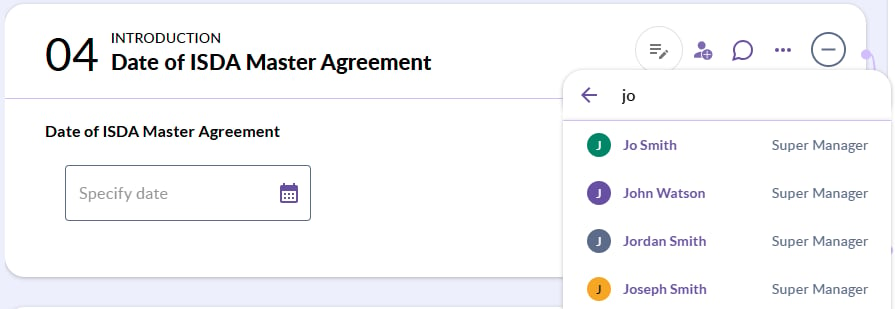
Search the name of your desired Approver and select their name to confirm your changes.
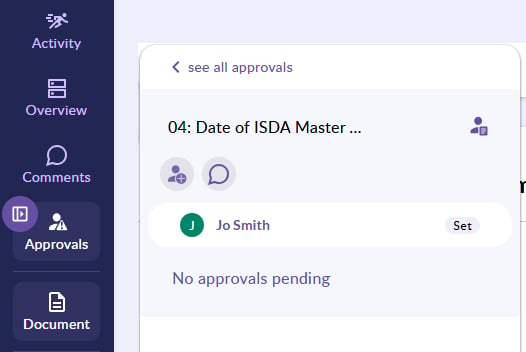
Once your approver has been set, the approval's panel will open up on the toolbar at the left-hand side of the negotiations page. This is where you can keep track of approvers for each election, as well as receive approval related updates.
Setting approvals at document-wide level
To set document-level Approvers, click on the Add approvers icon next to the name of the document at the top of the screen.

As above, search for the name of your desired Approver and select their name to confirm your changes.
How do I Add and Remove Approvers?
To add or remove Approvers, click on the Approvers panel in the left hand menu.
To Add a new Approver click on the Add approver icon and search for the name of your desired Approver and select their name to confirm your changes.
To Remove an existing Approver click on the cross next to their name in the list of approvers.
How do I set more than one approver?
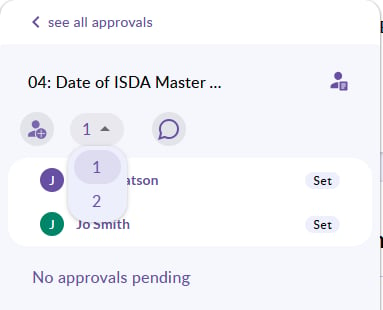
You can add more than one approver by following the add approvers process above and changing the number of approvers required.
How do I accept/reject approval requests?
Negotiations that require approval will appear on the Dashboard with a status that indicates Election Approval required or Document Approval required.
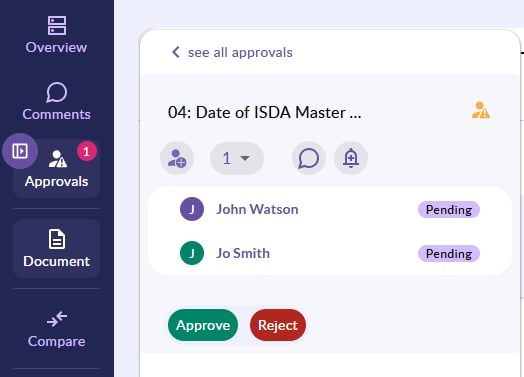
Open the negotiation and click on the approval icon from the toolbar at the left-hand side of the negotiation page. This will open a side panel that shows all elections that require approval. Scroll to the relevant election by clicking the election name in the side panel. When you reach the election requiring approval, click either the Approve or Reject button.
💡 To add a colleague as an Approver, please ensure that they already have access to your CreateiQ account. More information on how to Add Users can be found here.
💡 To add an approval related comment, click on the comment icon in the approvals panel within the specific election.
💡 Remember that if you revoke access to CreateiQ for your approvers this will impact your approval flow in your active negotiations. The removed approver will need to be replaced to ensure future approvals can be actioned.