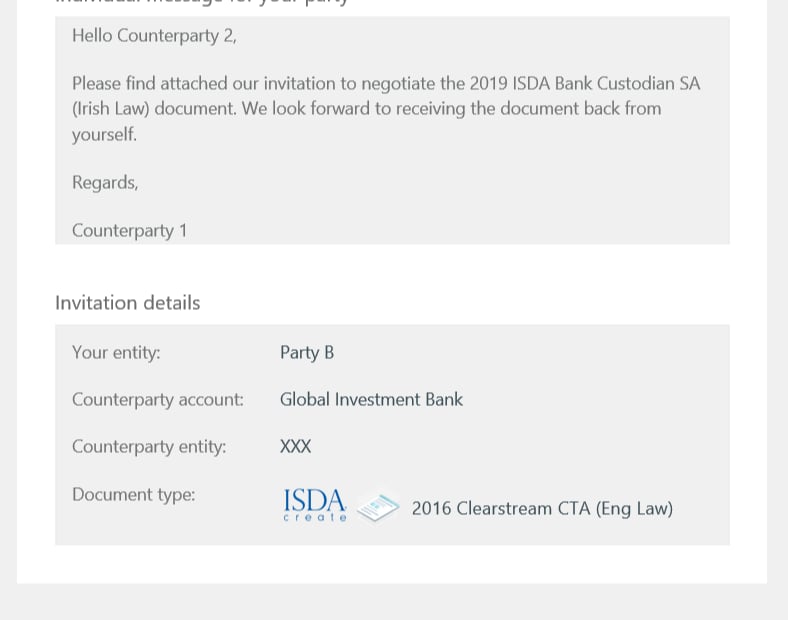
When you first send the document to negotiate, you may want to provide your counterparty with a brief explanation or simply introduce the document you are sending.
To achieve this, we have created a feature called "cover notes". If you are a Super Manager, Manager or Editor user, then you can add a cover note before sending the document.
How to add a cover note
- Click New invitation for your chosen document. Choose the relevant template if needed, then the parties, and complete any elections you require.
- Once you are ready to send, click Confirm at the top right-hand side of the page. Enter all relevant details for your counterparty.
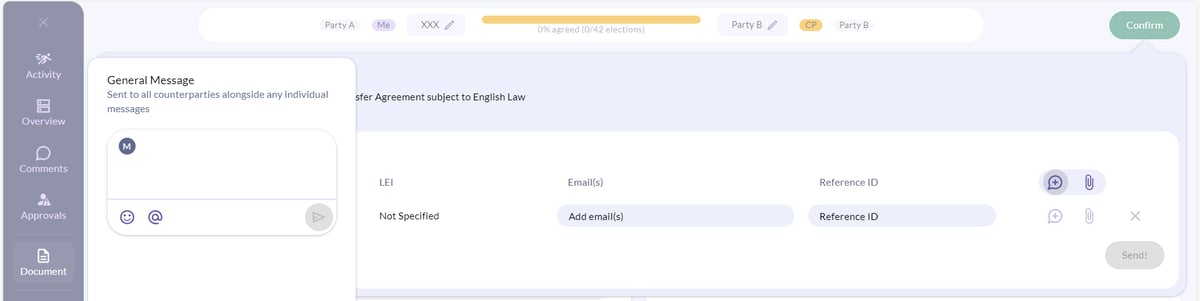
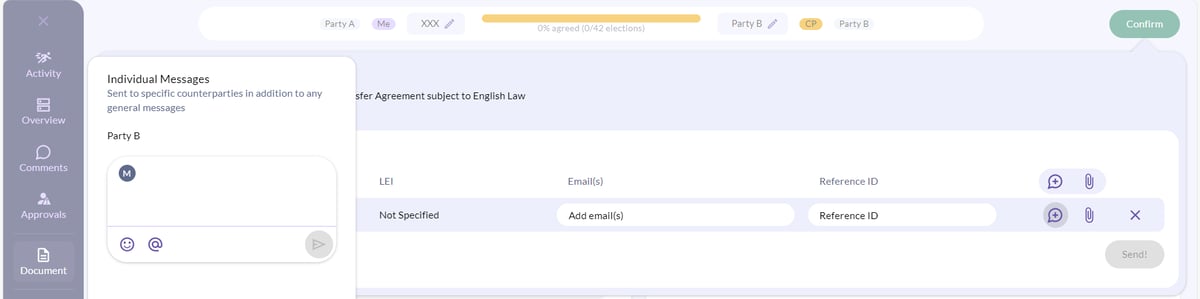
- On the right-hand side you will see two speech bubbles with plus signs inside, giving you the option to add a General Message to all counterparties alongside any individual messages, or an Individual Message to specific counterparties in addition to any general messages.
Your counterparty will receive an email and see your cover note under Message.