
Templates are static prepopulated positions that you have created for a document. Templates can be created once and used multiple times to apply the positions across negotiations that use the same document.
💡 Templates can be used as a time saving measure when you want to use the same provisions for negotiations with more than one company 💡
Creating your templates
There are two ways to create a template. This can be done through the Templates library and also directly through an Active negotiation.
When creating a template through the template library:
- Navigate to the Templates library from the side bar on your screen.
- From the templates library, locate your chosen document and select Manage to open the templates manager.
- Select New template and then Create template.
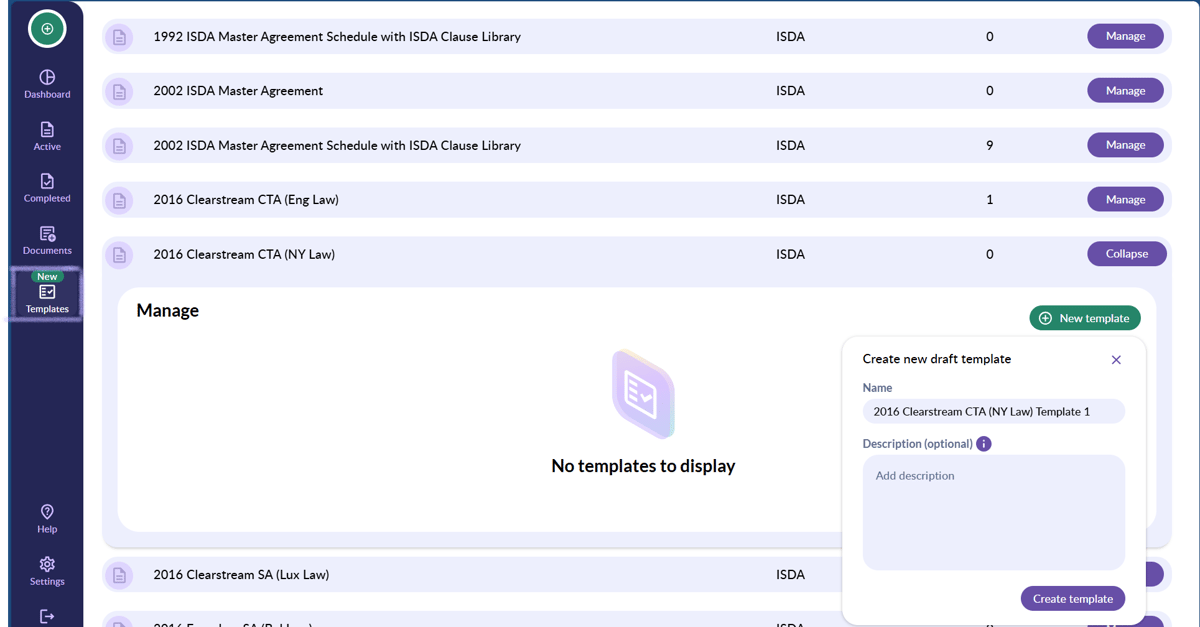
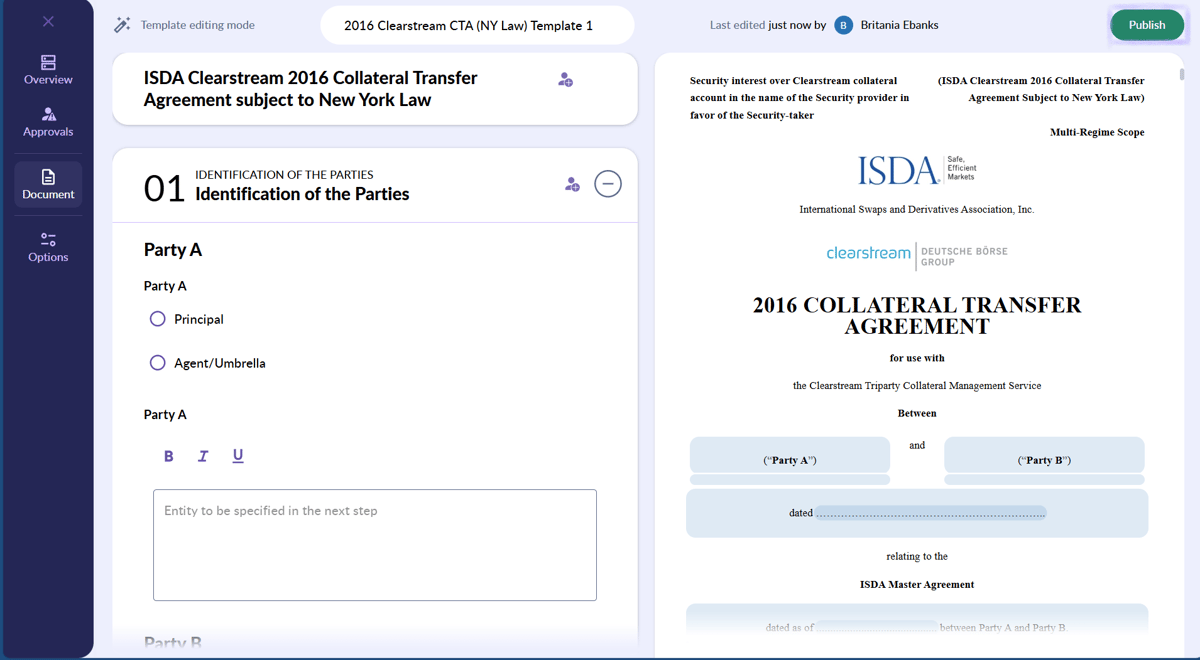
- This will open the document so that you're able to enter your provisions. Select Publish to finalise your template and make it available for use.
When creating your template through your negotiation:
- With your negotiation open, navigate to the Options tab from the available side bar and select Save as a draft template Then select Save to library.
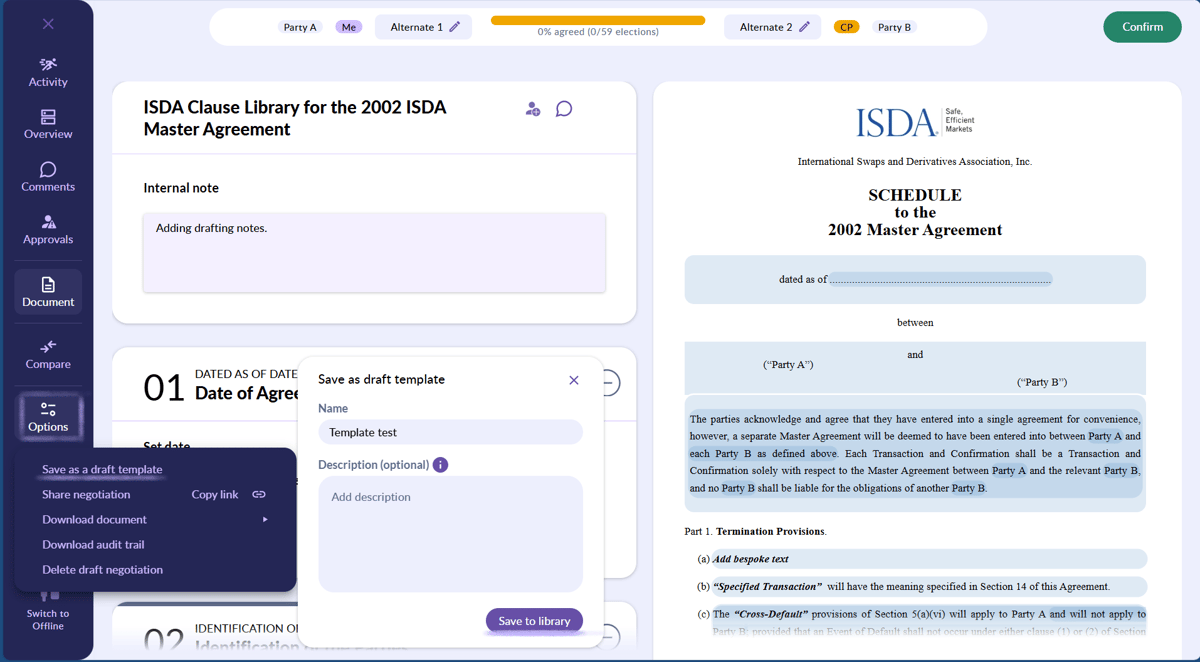
- To publish your draft, you'll need to go back to the Templates library where you'll also be able to edit your draft template if needed.
💡 Please note, that if Template approvals have been switched on for your account, your ability to publish templates will depend on your user permission level. Click here to see how permission levels can affect your template access 💡