
At the execution stage, each party can see the CreateiQ Review and Sign page.
It's as simple as this: the Review and Sign page is where you can review the agreed document and we give you everything you need to sign!
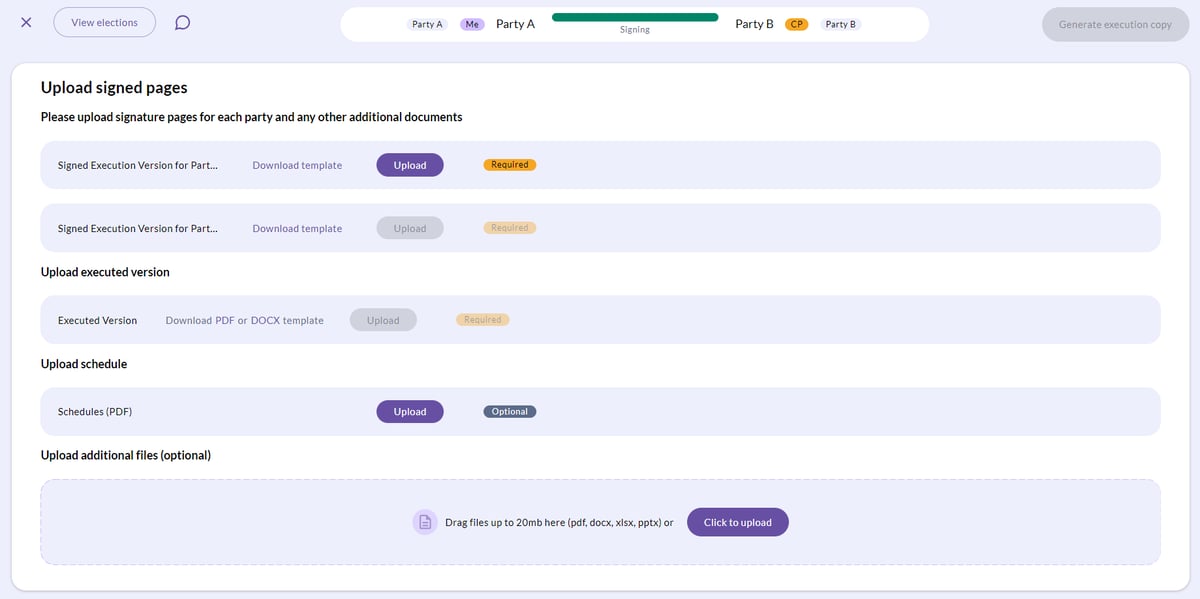
Summary of steps
- The process starts with the Pledgor and Secured Party. Each party should download & sign the signature pages from the Review and Sign page. Once signed, this should be uploaded back to the same Review and Sign page.
- As Pledgor or Secured Party, you only need to upload the Signed Execution Version (PDF) for yourself. Likewise, you don't have to worry about the Generate executed copy button. That's for the Custodian to finalise.
- As Pledgor or Secured Party, you will receive a notification as each counterparty uploads their Signed Execution Version document. The Custodian is also notified when each party has uploaded their Signed Execution Version.
- Once the Pledgor and Secured parties have both uploaded their Execution Version (PDF), the Custodian will then consolidate these signed copies with their signature page. The Custodian will then upload a final consolidated Executed Version, they will select Generate executed copy and the negotiation is complete!
- When a negotiation is completed, you will be notified via email. For the purpose of deeds, this notification acts as the 'release' of the executed document. The final Execution Version is available for review and download on platform.
An Audit Trail and Metadata JSON file will also become available to download once the negotiation is complete. To find out more, you can check out this article here.
Q: Can I upload an Eligible Collateral Schedule (ECS)?
Yes! The Pledgor can also upload the Eligible Collateral Schedule into the Upload schedule section. Please speak with your regular contact at the Custodian if you have any questions relating to this.
Q: How can I amend the document after I've reached the execution page?
You can make changes to the document as long as the negotiation hasn't been finalised by the Custodian. Only the Pledgor/Secured Party can revert to negotiation.
- On the Review and Sign page, click on the 'View elections' tab to the left of the screen.
- Then, click on 'Revert to negotiating'. This will return you to the election view where you can make any changes required.
- Once you have made amendments to the document, click the 'Confirm agreed form' again to progress the amended document to Execution.