Elections are the questions to be answered in the negotiation. They are displayed on the left-hand side of your screen, while the document being negotiated displays on the right-hand side.
Each election is linked to a particular section (or sections) of a document. Clicking on the election will navigate you to the section(s) linked to that election.
If there is a scroll icon within an election, clicking on the icon will navigate you to the section(s) linked to that part of the election.
As selections are made in each election, the document will be automatically updated to reflect the changes.
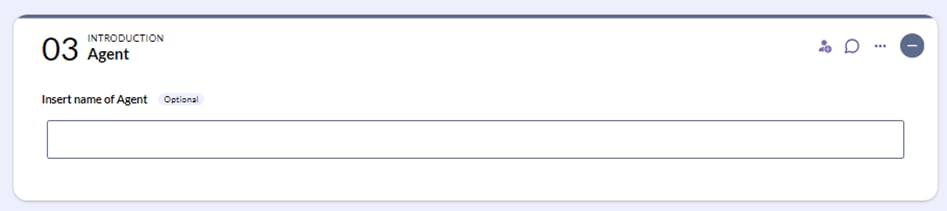
Please note that elections marked 'optional' do not need to be populated.
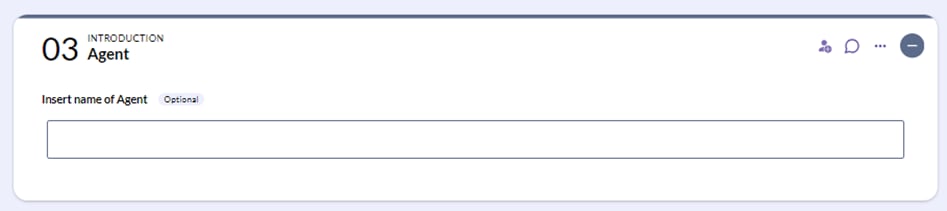
Types of Elections:
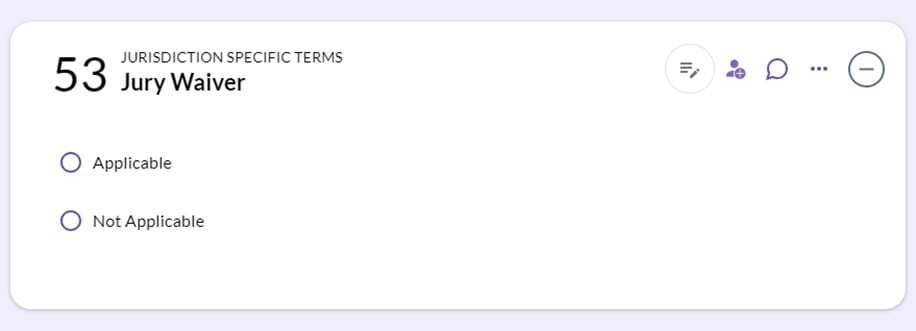
The length and complexity of an election depends on what is being determined in the negotiation. Some elections may consist of a simple "Applicable/Not Applicable" radio button question.
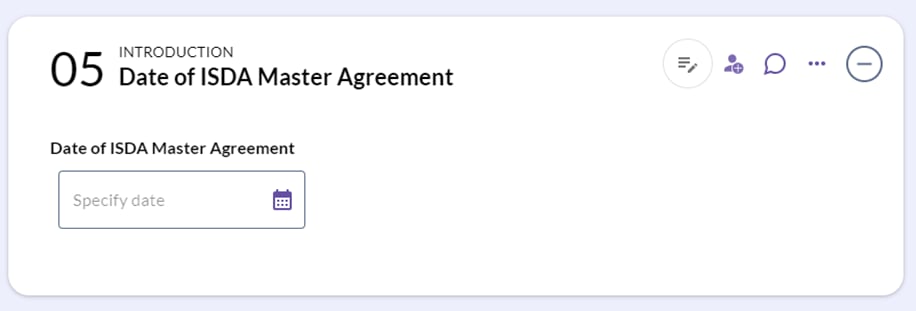
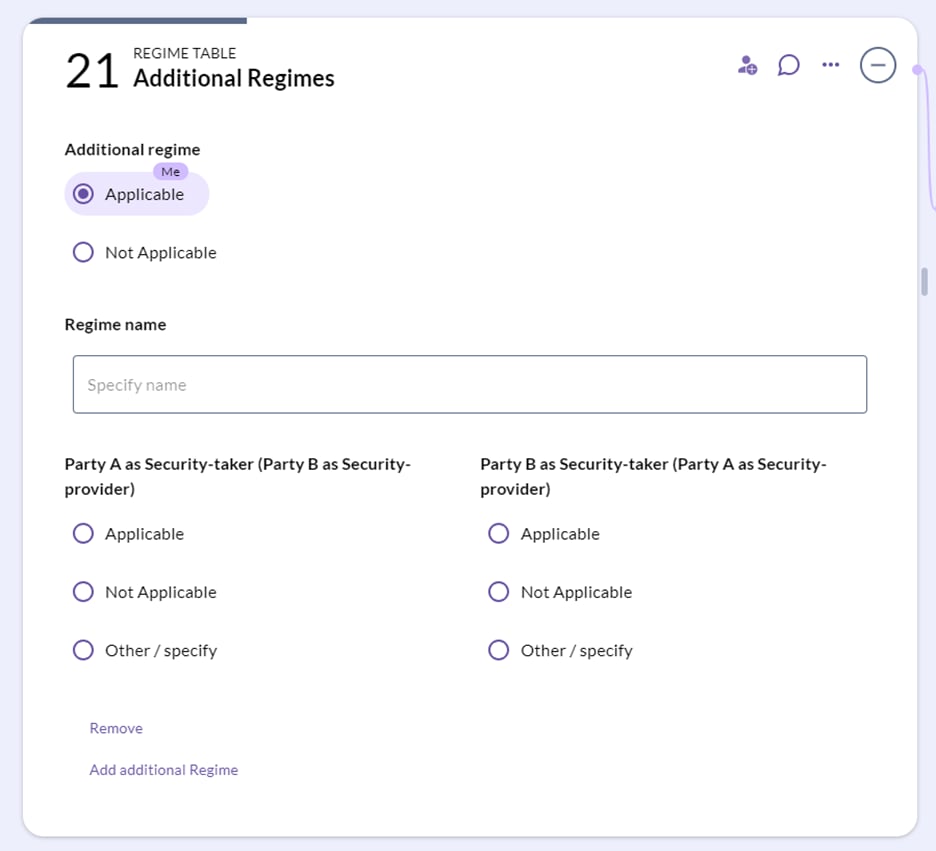
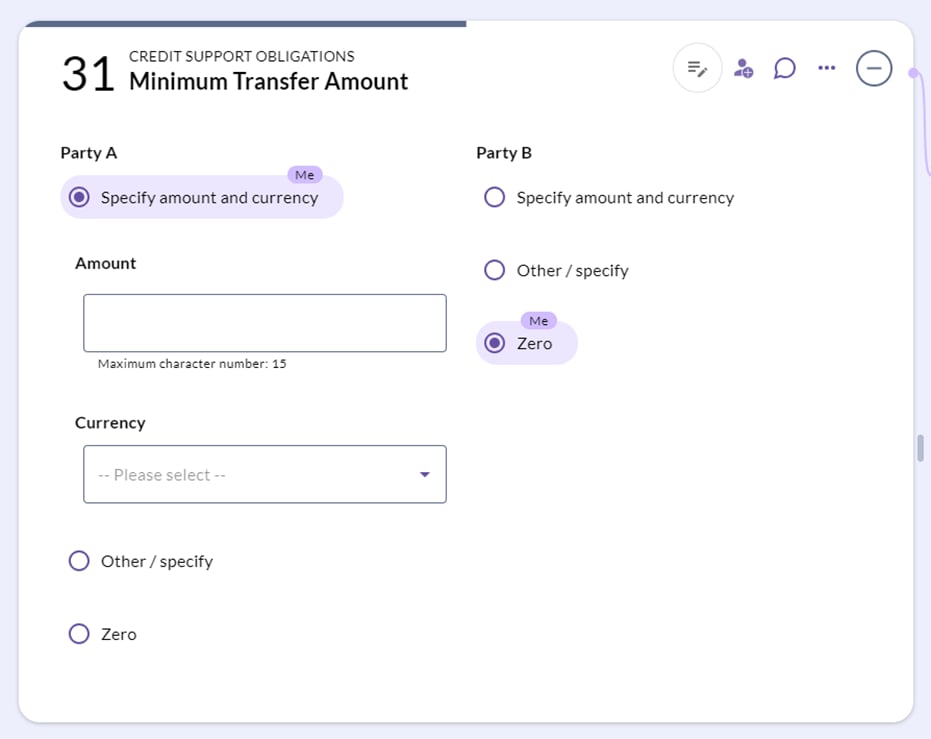
Other elections may contain a range of options (such as checkboxes, editor boxes or dropdown menus), some of which may even appear or disappear depending on the selections you make as you progress through the election.
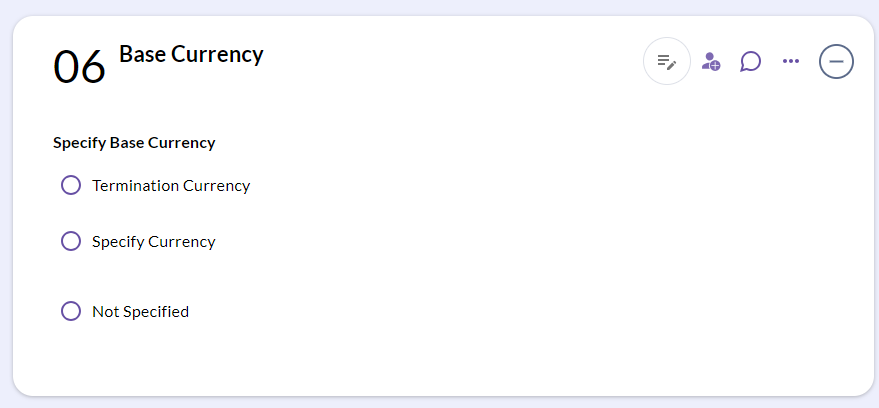
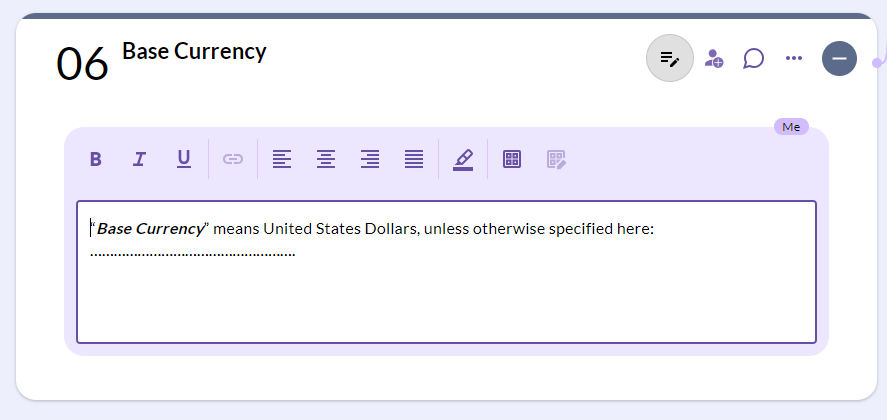
If an election has an amend button, you can edit the entirety of the section that is linked to the election.
Before amend:
After amend:
If you are the initiating party you may be able to reserve an election, which means that the section(s) of the document linked to that election will become non-negotiable. For more information, see Reserved elections.
Below are a few examples of elections:
Clearing Your Answers
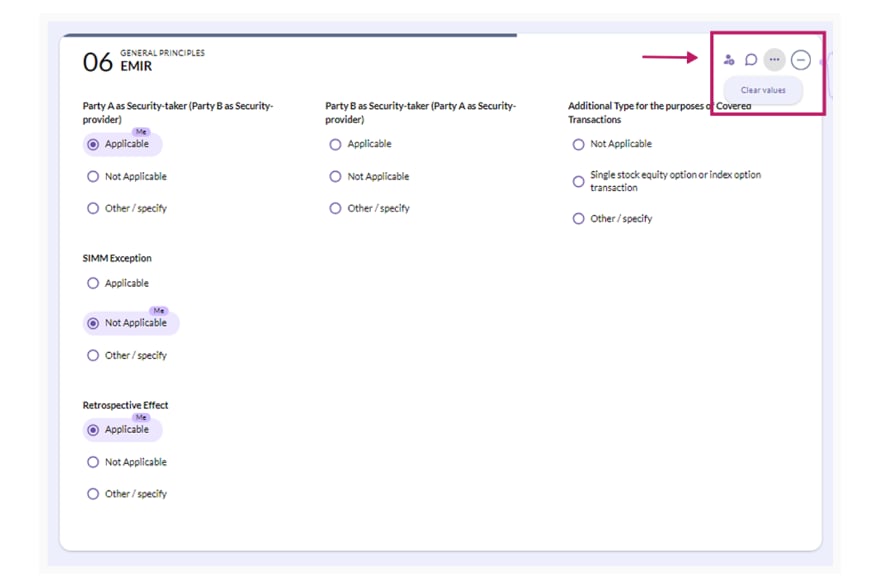
You can clear the selections that you have made within an election by clicking on the ellipsis menu icon in the top right-hand corner of the election and then clicking on the "Clear values" button:
Status of an election
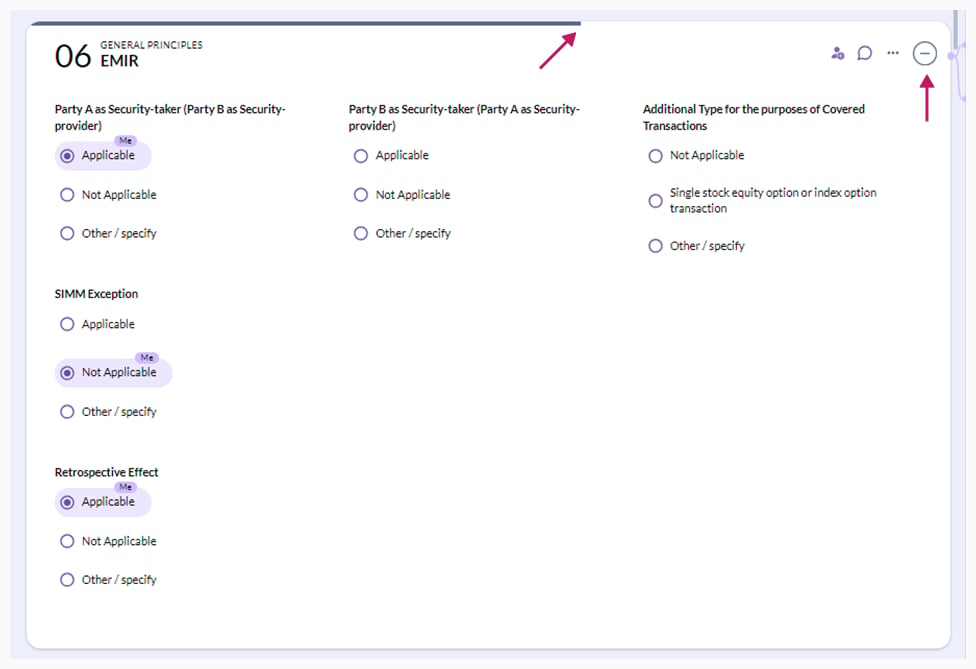
As you progress through the election, the status of the election will update (from Incomplete to Complete) in the pie chart icon and the progression bar at the top of the election:
Note that elections that have an "Optional" label do not need to be populated:
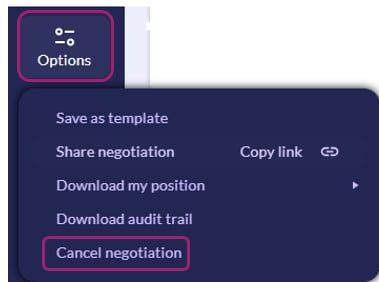
💡 Do you need to delete your draft document? Click on Options in the left hand menu and select Cancel negotiation.
Note: by cancelling your draft document, you are deleting it and you will not be able to retrieve this in the future.