
S&P, ISDA and CreateiQ have joined forces to revolutionise the negotiation and management of derivatives contracts.
The integration links ISDA Create and S&P Global Market Intelligence's Counterparty Manager service to create a one stop shop for end to end negotiations of complex derivatives contracts.
This integration means that institutions can now use ISDA Create's functionality to draft, negotiate, and execute ISDA Master Agreements and other significant derivatives documents directly within Counterparty Manager, which will enable institutions to conveniently access all contractual data in a digital format, from a single, centralised location.
How This Benefits You:
- Automation of contract creation and negotiation
- Digitised audit trail of the contract lifecycle
- Transparent integration into onboarding and lifecycle processes
- Centralised location for all ISDA negotiations
- Straight-through processing of contract terms to downstream systems
Accessing ISDA Create via Counterparty Manager
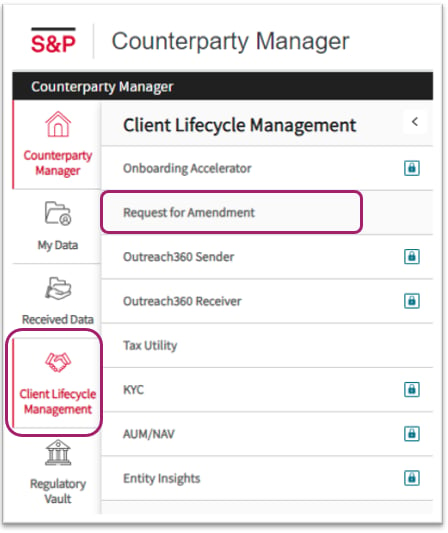
Log into your Counterparty Manager account and from the homepage, click on Client Lifecycle Management in the left hand menu followed by Request for Amendment.
The list of negotiations in your ISDA Create account can be viewed from the Request for Amendment screen.
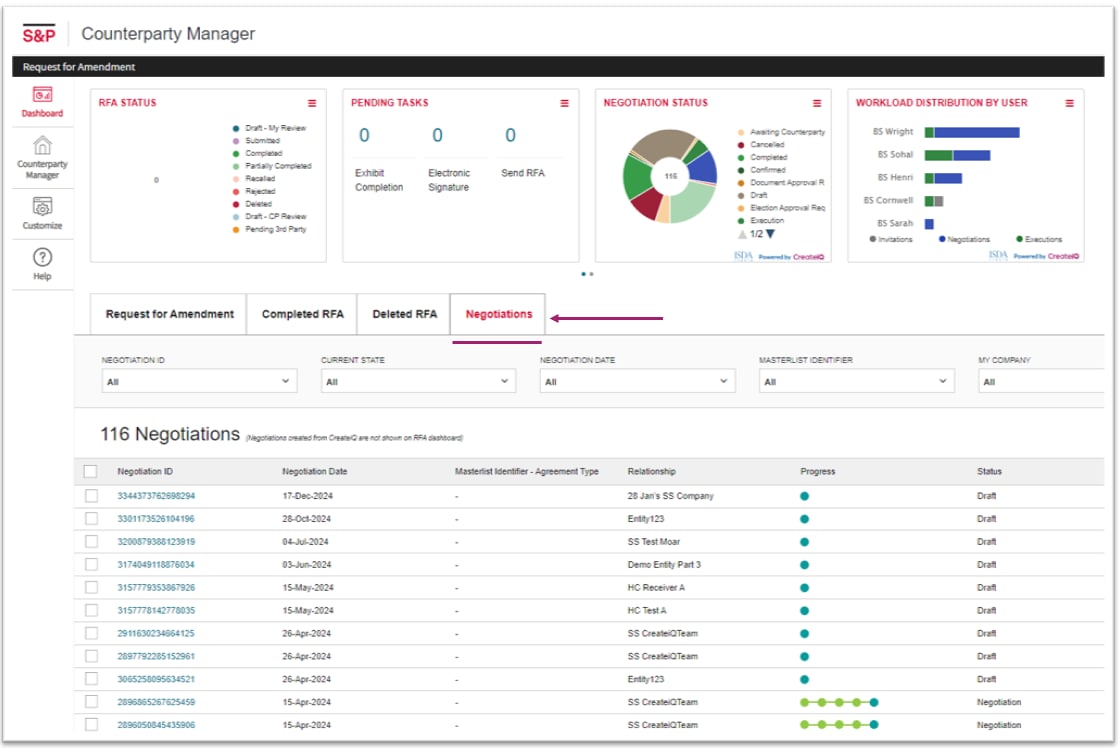
Negotiating your documents via S&P Global Counterparty Manager
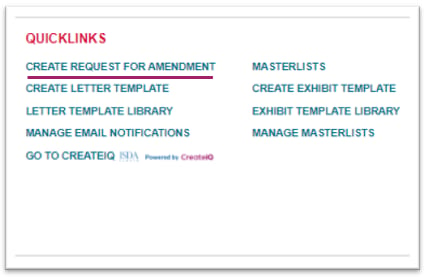
You can initiate an invitation to negotiate via the Request for Amendment page by clicking on Create Request for Amendment in the top right of the screen.
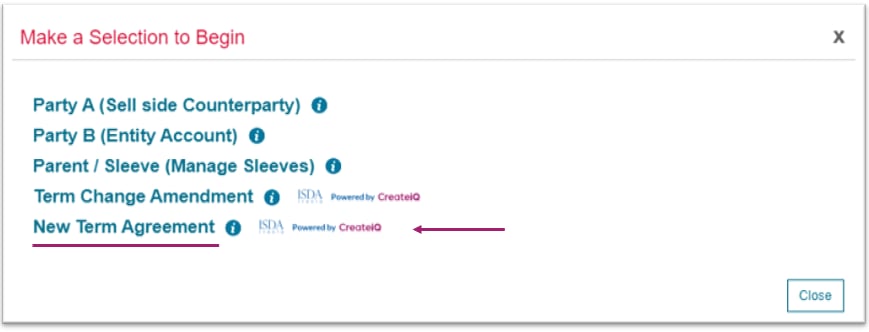
Select New Term Agreement from the pop up menu.
Select the document you'd like to negotiate by clicking the button to the left of the document name.
A preview of the chosen document can be seen before making your final selection.
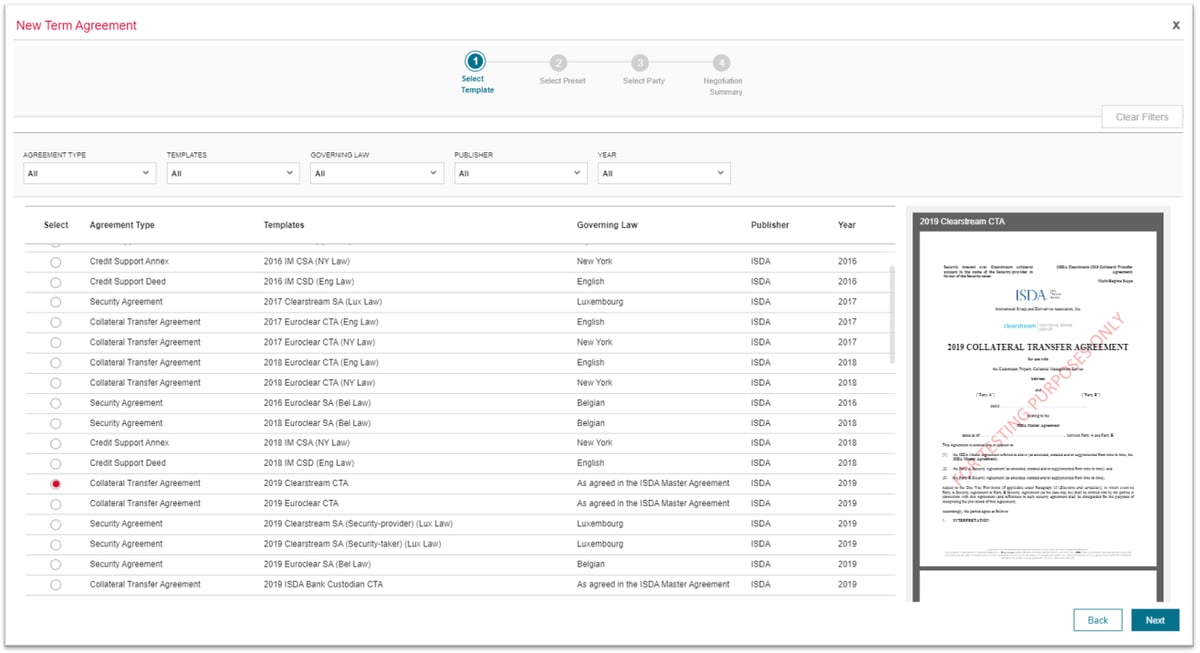
- Select a template saved in your CreateiQ account to apply to your draft negotiation.
Not sure on how to save a template? Please check out our Help Centre article here for a step by step guide.
- Now it's time to enter the legal entity names in for both yourself and your Counterparty, as well as the email address for your Counterparty.
- The final step before creating your draft negotiation will be to review the negotiation summary.
- Once you're ready, you can click create!
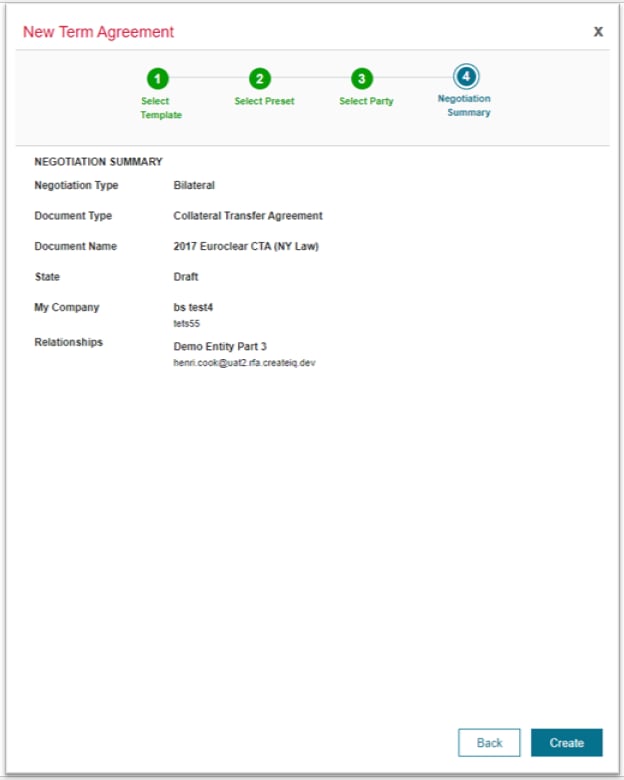
You'll then be navigated to the election view in ISDA Create. Don't worry - you're still logged into Counterparty Manager!
💡 You can navigate back to your Counterparty Manager Dashboard at any time using the Back to Dashboard button in the top left of the screen.
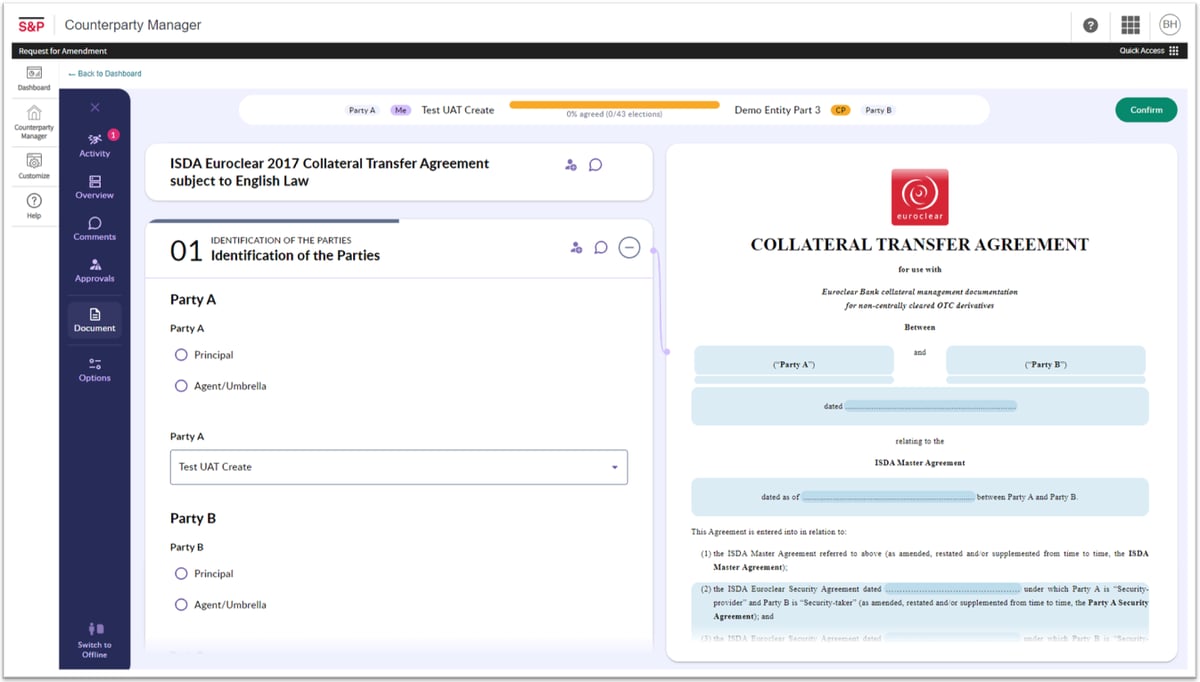
The draft document can now be updated with your provisions and when you're ready to send this to your Counterparty - Click Confirm!
You'll be asked to review your Counterparty details one last time before you click Send.
💡 If you haven't already connected your CreateiQ and your S&P Global Counterparty Manager accounts, or if you have any questions at all, please contact our Support team at support@createiq.tech and we'll be happy to help! 💡