
💡 Only Super manager, Manager or Editor users can toggle this feature and attach documents to the invitation. For more information on user permissions, check out our article here.
You can attach a copy of the document you are negotiating to the invitation email your counterparty will receive. You can also attach other documents too, here's how!
How to attach a PDF or DocX documents to your CreateiQ invitations
- Click New invitation for your chosen document from the document library. Choose the relevant template if needed, select parties, and complete any elections you require.
- Once you are ready to send the document, press Confirm at the top right of the page.
- You'll notice there are multiple buttons to attach a document.
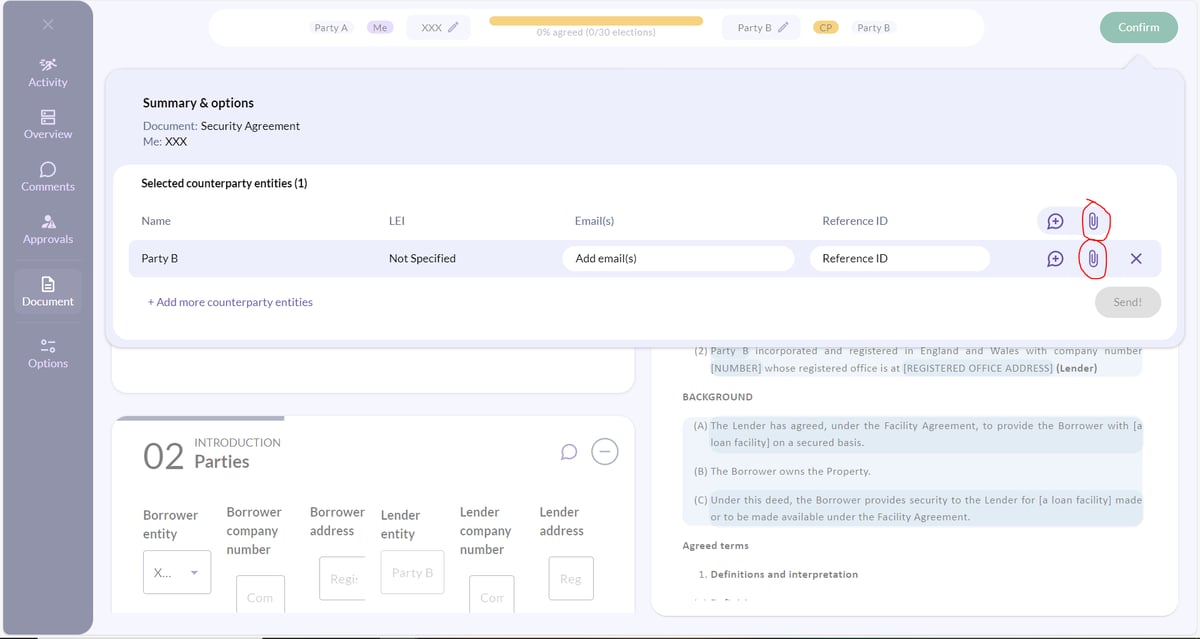
- If you wish to attach a document to send to all Counterparties, select the first paperclip. If only to a select counterparty, click the paperclip within their row, and select or drag in the files that you would like to attach to your counterparty's email notification.
- Your counterparty will receive a copy of the document you wish to negotiate with them attached to their email notification.
💡 The files being uploaded must be PDF or docx format.