
How to access your negotiation
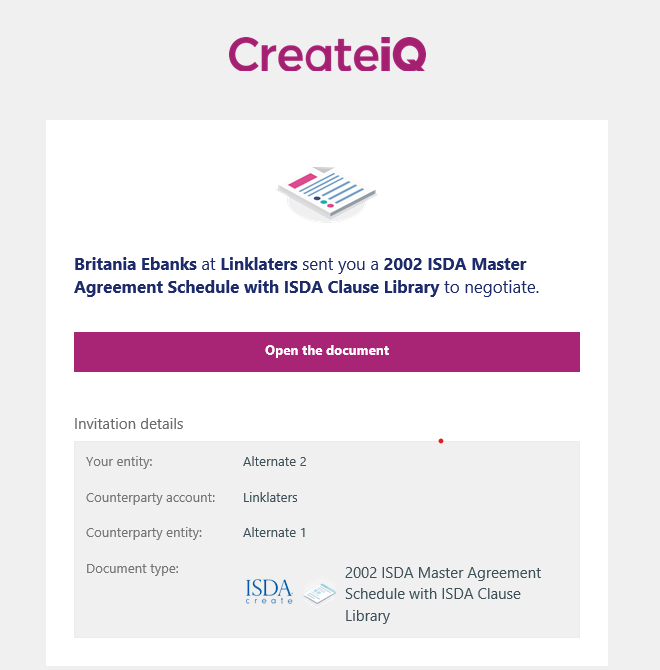
- Open your invitation to negotiate email and click Open the document.
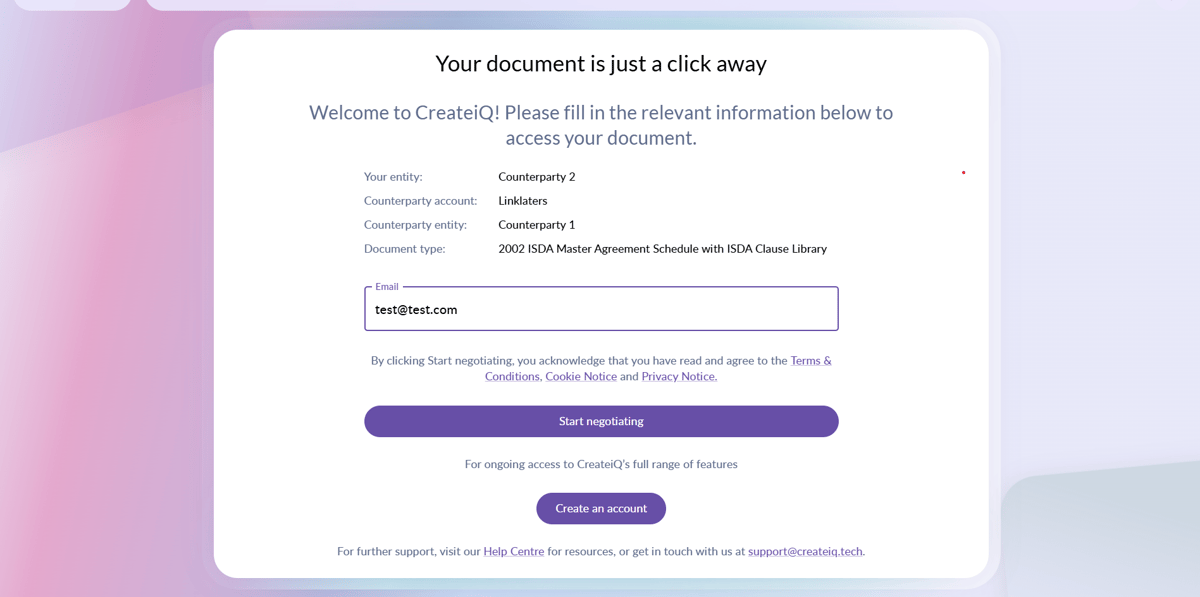
- This will direct you to the Guest Access log in page. You can start negotiating once you've entered your email address.
Negotiating using Guest Access
- Now that you have access to your document. Click Unlock and Confirm to start negotiating.

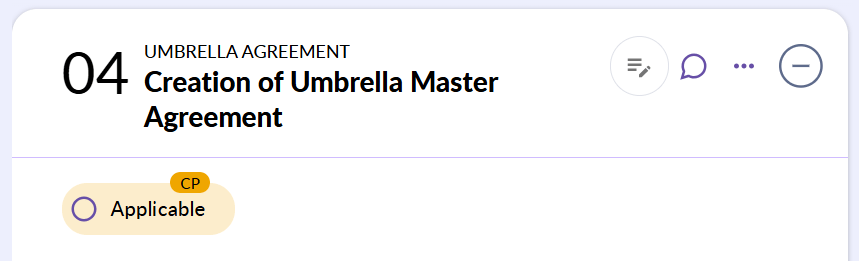
- Your counterparty's positions will appear in orange under each election (this will appear as blank if they've yet to make their selections). To input your own positions, simply click/enter your preferred selection.
- Once you have entered your positions, select Confirm and then Send from the top right of the screen to return the document to your counterparty.

💡 You're able to access your negotiation using the guest access link for each turn of your negotiation, right up until completion. 💡
Executing documents using Guest Access
- When both parties are in agreement and the negotiation has hit 100%, you're able to finalise your negotiation by selecting Confirm and then Yes.

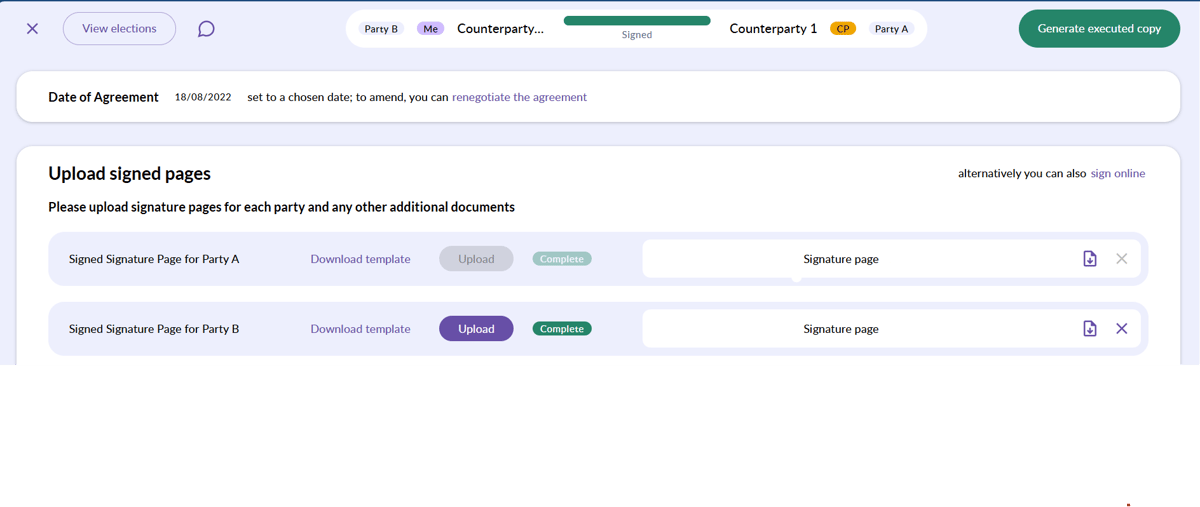
- When both parties have confirmed, you'll be taken to the signing page where you'll be required to upload your signature page (for offline signatures) or sign electronically (online signatures).
- Once both parties have signed, the Generate executed copy button will become functional. Select this to finalise your negotiation.
💡 Upon completion, your finalised negotiation will be emailed to you and you'll no longer be able to use your guest access link. 💡
To learn more about the execution process, check out our article here for a custodian workflow or here for a bilateral workflow.
To find out more regarding our signature options (both hand signing and e-signing via DocuSign) click here.
You may also watch our guest access videos here.
Extra features
- Inline comments: can be added to documents beside elections.
- Internal: comments are visible to your internal team that have access to the document either in your registered account or via the Guest Access link.
- External: comments are visible to your counterparty.
- Compare: The compare button in the toolbar allows you to apply counterparty positions across all elections in one click.