
Step one - agree the document.
On CreateiQ, the first step to access your Custodian document is to get an agreed form. This is done by your Custodian sending you an invite as a Pledgor.
Once your document is agreed, you can find it in the Document Library > Custodian
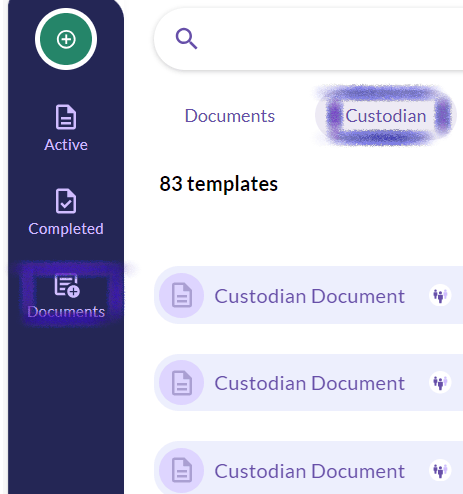
Step two - Negotiating time
You can now initiate negotiations with your Secured Parties by selecting the green plus that is inline with the document name.
Not sure how that's done? If it's your first time around here, check out this section of our help centre.

It is important to note that the Pledgor must be online (e.g. using the platform) for this workflow. Although it is more efficient to use CreateiQ to complete your negotiation, the Pledgor can send the Secured Party an offline negotiation.
Step three - almost done...
💡 You can use the Overview tab in the side panel to check where you may still need to agree with your counterparty.
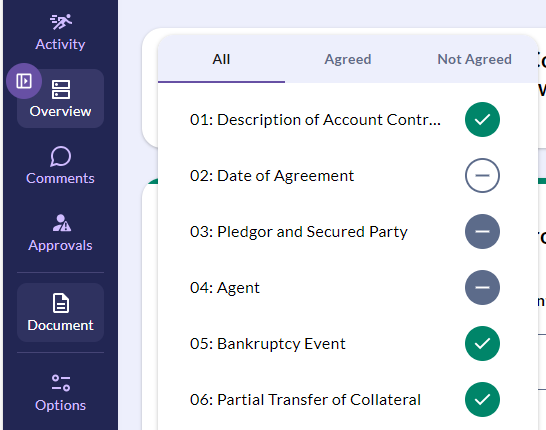
Or click on Compare in the side panel to open the compare panel. Then click on Agree to apply your counterparty's positions and save some time if you're on the same page.

As with the bilateral workflow, you want to get to the Confirm agree form stage, which both parties have to click.
Step four - Custodian execution
The final execution involves the Custodian finalising the document. Here, both parties upload their signed signature page and an ECS if applicable. The Custodian will click 'Generate executed copy'.
For more information on the execution process for a Custodian workflow, check out this article.
Want to create a template from your Custodian Document?
Once you've agreed a document with the Custodian, you're able to create a template from it.
A template contains static pre-populated positions in the document and can be saved once, but used multiple times to apply the same choices across documents.
💡 You can create a template to save time when you may want to save a set of provisions to send out to multiple counterparties.
To do this from a custodian document select the Options tab from the side panel and then select Save as draft template.
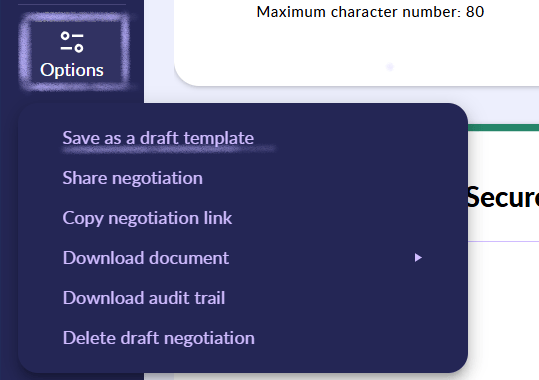
Once saved, you can access your Custodian Template using the guidance detailed here.